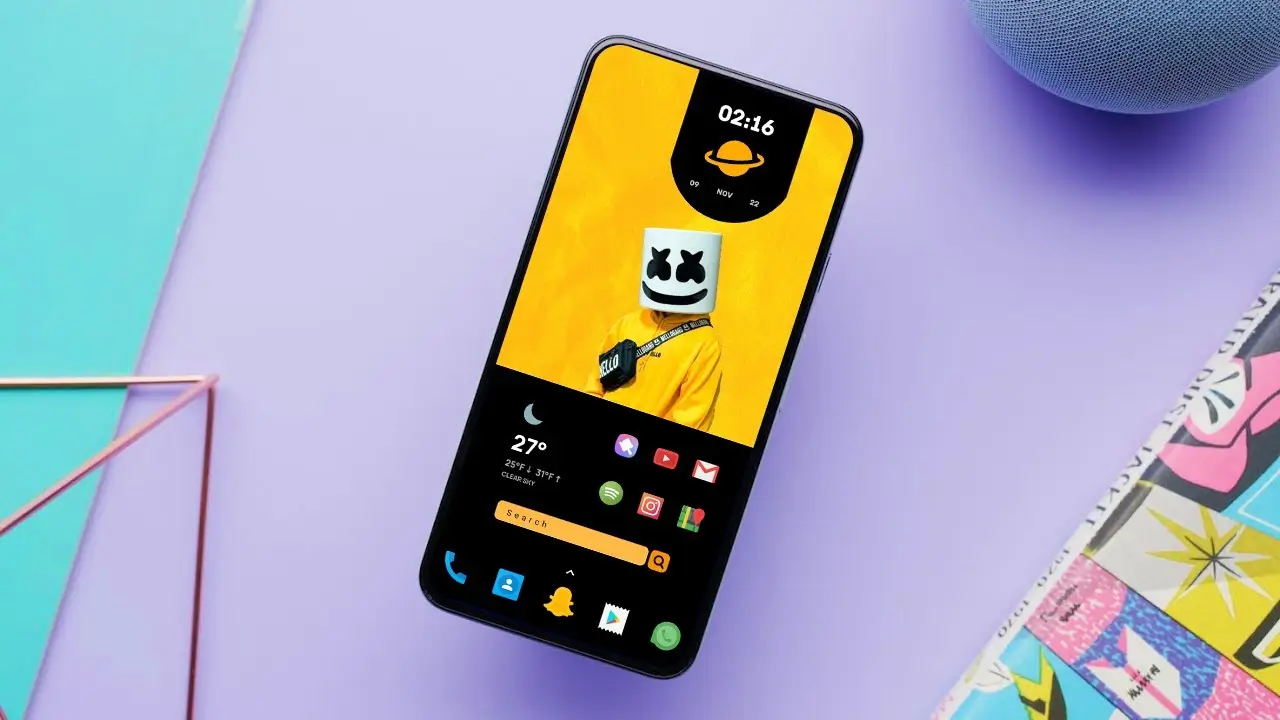
Personalizing your Android phone is one of the best ways to make your device feel unique. With the right tools, you can completely change the look of your home screen and turn it into a clean and modern interface. In this tutorial, we will go through a simple Android theme setup that allows you to recreate the same home screen style shown in the video.
If you follow the steps carefully, you can achieve a similar setup in just a few minutes.
Apps Required for This Setup
Before starting the setup process, you need to install a few apps from the Google Play Store. These apps help control the launcher layout, widgets, wallpaper effects, and file management.
Here are the apps used in this theme setup:
- Theme Settings – This package includes the Nova Launcher backup and the KWGT widget files used in the setup.
- Nova Launcher – A popular launcher that allows deep customization of your home screen.
- Hologram App – Used for applying the special wallpaper effect used in the setup.
- KWGT Kustom Widget Maker – Allows you to add custom widgets to your home screen.
- CX File Explorer – Used to access and import the theme files and backups. Any file explorer will work, but CX File Explorer is simple and easy to use.
✅ DOWNLOAD ✅
Make sure all these apps are installed before moving to the next step.
Step 1: Install and Prepare the Apps
Once all required apps are downloaded, open Nova Launcher and set it as your default launcher. This is important because the theme layout depends on Nova Launcher settings.
After setting it as default, open CX File Explorer and locate the files you downloaded from the Theme Settings package. These files usually include:
- Nova Launcher backup
- KWGT widget files
- Wallpaper file
Keeping these files in an easy-to-access folder will make the setup quicker.
Step 2: Restore Nova Launcher Backup
The Nova backup contains the main layout used in the tutorial. Restoring this file automatically places icons, grids, and layout exactly as shown in the video.
Follow these steps:
- Open Nova Launcher Settings
- Tap Backup & Restore
- Choose Restore Backup
- Select the Nova backup file from your storage
Once restored, your home screen layout will change to match the theme structure.
Step 3: Add and Adjust KWGT Widgets
The next step is setting up the widgets.
Open the KWGT Widget Maker app and grant all necessary permissions. After that:
- Long press on the home screen
- Tap Widgets
- Choose KWGT Widget
- Place it on the home screen
Tap the widget and select the widget file provided in the Theme Settings package.
Sometimes the widget size may need a small adjustment to fit perfectly. You can resize it by long pressing the widget and dragging the edges until it matches the layout shown in the tutorial.
Step 4: Apply the Wallpaper with Hologram App
The wallpaper is an important part of the theme because it creates the visual style seen in the video thumbnail.
Open the Hologram app, import the wallpaper file, and apply the effect as shown in the tutorial. Once applied, set it as your home screen wallpaper.
This step completes the visual design of the theme.
Final Result
After completing all steps, your Android home screen should now look similar to the one demonstrated in the tutorial. The combination of Nova Launcher, KWGT widgets, and the hologram wallpaper effect creates a modern and minimal home screen layout.
The best part about this setup is that you can always modify icons, widgets, or wallpaper later to match your personal preference.
If you are new to Android customization, simply follow the video guide along with these steps and you will be able to set up the theme without any difficulty.