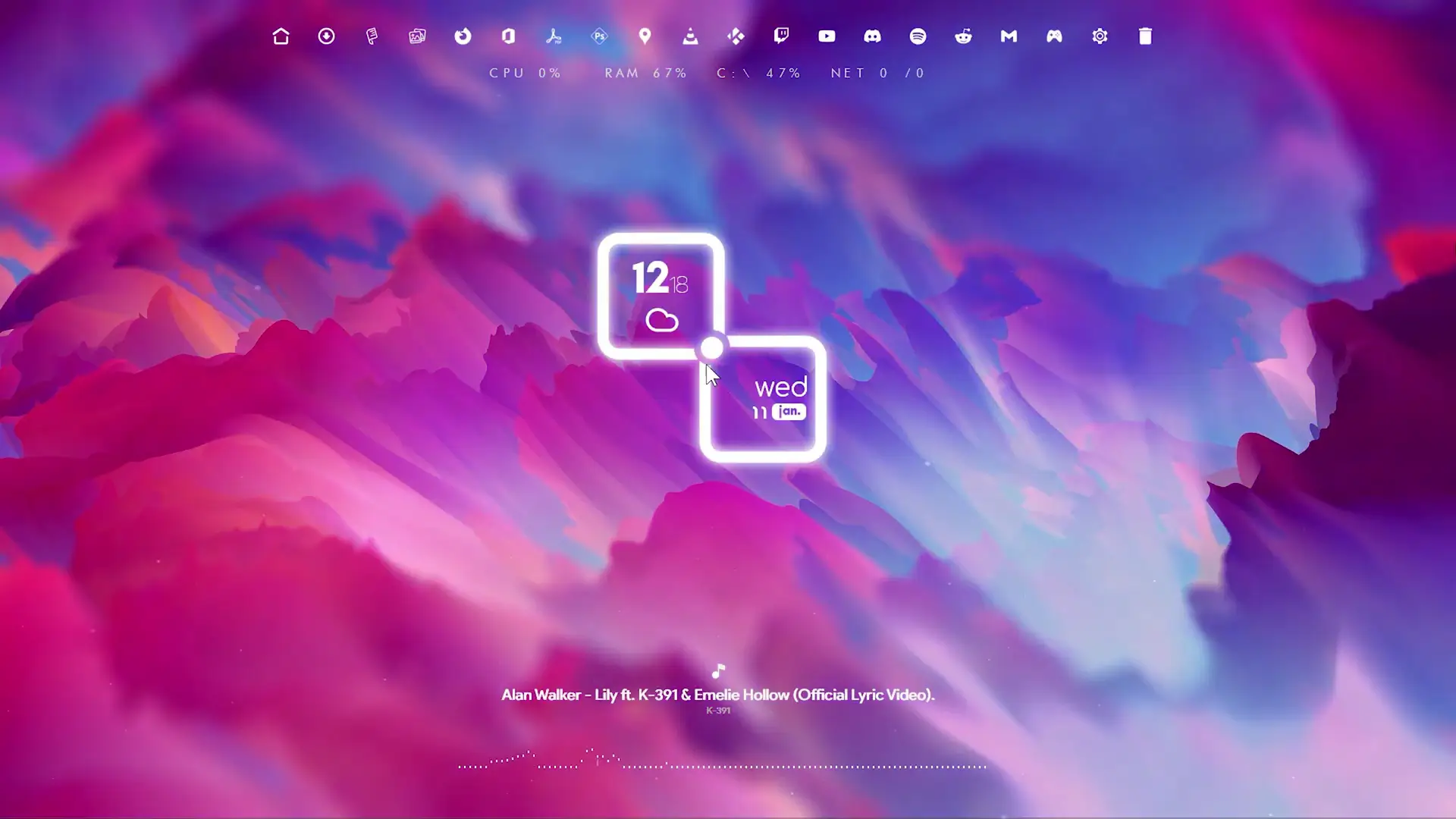
If you enjoy giving your computer a clean and stylish look, this desktop customization setup is worth trying. It combines an abstract wallpaper with Rainmeter skins to create a modern desktop layout that shows useful information like date, weather, system stats, and music details. The setup also includes an optional live wallpaper that adds motion to the background while keeping the system performance balanced.
The concept of this customization is simple. Instead of keeping a plain desktop, you add small widgets and visual elements that make the screen both useful and visually appealing. The tutorial linked above demonstrates how to achieve this setup using Rainmeter and a few carefully selected skins.
Wallpaper and Theme Concept
The desktop theme uses an abstract wallpaper as the main visual element. Abstract wallpapers work well for customization because they are minimal and do not distract from widgets or icons placed on top of them.
The setup includes two wallpaper options:
- Normal abstract wallpaper
- Live animated wallpaper
The live wallpaper version is optional. Some users avoid live wallpapers because they think it consumes a lot of RAM or CPU. In this setup, the live wallpaper files are optimized so they run smoothly on most systems. However, if you prefer a simpler setup, you can use the static wallpaper included in the package.
The theme and widgets are inspired by the work of Shorbete, a DeviantArt artist known for creating visually appealing Rainmeter themes.
Required Tools and Files
To apply this desktop customization, you need a few tools and Rainmeter skins. These components work together to create the final look.
✅ REQUIREMENTS ✅
- Rainmeter
- Theme SETUP Zip File
- WhiteNeon2
- Elementary 3.0
- Music Info 2 skin for Rainmeter
- WebNowPlaying Companion
- Lively Wallpaper (Optional)
Rainmeter is the main software that allows widgets, called skins, to run on your desktop. Without Rainmeter, the customization will not work.
The theme setup zip file contains several important items, including the wallpaper, optional live wallpaper, and the Abelo Rainmeter visualizer skin.
Installing Rainmeter and Skins
Start by installing Rainmeter on your computer. Once Rainmeter is installed, you can install the skins included in the setup files.
After installing the skins, open the Rainmeter application and click the Refresh button. This will load the newly installed skin folders so they appear in the Rainmeter panel.
You will then see several directories that contain different widgets used in this desktop layout.
Loading the Widgets
Next, you need to load the skins that will appear on your desktop.
From the WhiteNeon2 folder, load the following widgets:
- Date
- Dock
- Weather
After loading them, you can move them around the screen to match the layout shown in the tutorial.
Then open the Elementary folder, go to the System section, and load the file:
- system-h.ini
This widget displays system information like CPU and memory usage.
Next, open the Music Info 2 folder and load:
- MusicInf2 spotify.ini
This widget shows the currently playing song.
Finally, open the Abelo folder and load the visualizer. This adds a music visualizer effect that reacts to the audio playing on your computer.
Showing Song Titles on the Desktop
To display music titles from YouTube or other web players, you need the WebNowPlaying Companion browser extension.
After installing the extension in Chrome, the Rainmeter music widget will be able to detect songs playing in your browser. When a song starts playing, its title will appear on the desktop automatically.
Fixing Song Title Issues
In some cases, the song title may not appear and the widget might show “0”. If that happens, you need to install the WebNowPlaying Rainmeter Plugin.
Download the .rmskin file for the plugin and install it using Rainmeter. Once installed, restart Rainmeter and the music title display should start working correctly.
Final Result
After completing these steps, your desktop will have a modern abstract design with multiple widgets displaying useful information. The combination of Rainmeter skins, a clean wallpaper, and optional live background creates a setup that looks impressive while remaining functional.
This type of customization is popular among users who want their desktop to feel personal and organized without installing heavy software. With a few simple tools and skins, you can transform a normal Windows desktop into a visually appealing workspace.