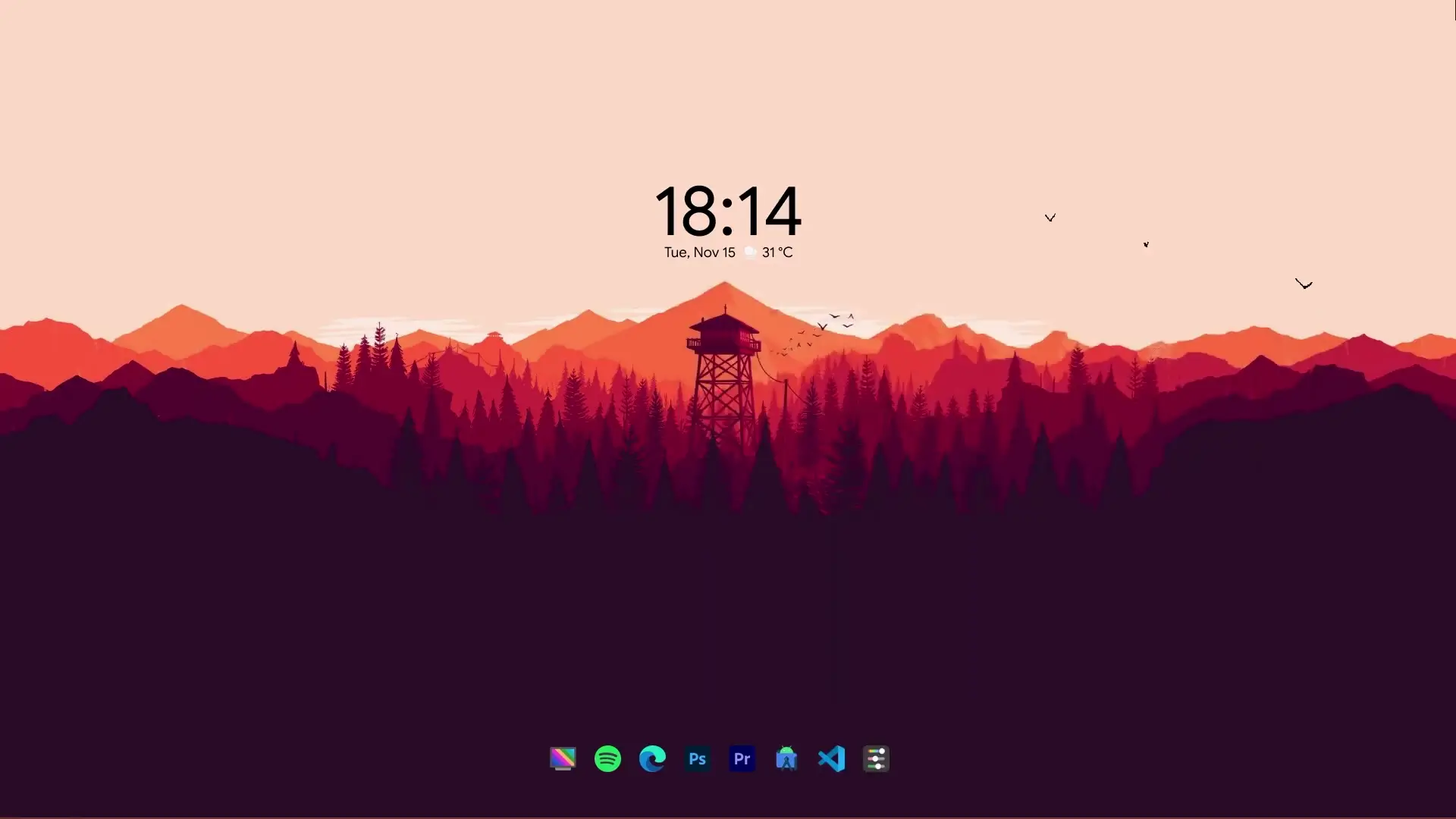
Customizing your desktop can make your computer feel more personal and visually appealing. Many users install live wallpaper applications to achieve a dynamic look, but live wallpapers can sometimes use more system resources. The good news is that you can create a clean and stylish desktop setup without using any live wallpaper software.
In this guide, you will learn how to customize your Windows 10 or Windows 11 desktop using only Rainmeter and a simple wallpaper. With the right widgets and layout, you can achieve a modern desktop look while keeping your system lightweight and responsive.
Why Use Rainmeter Instead of Live Wallpaper?
Live wallpapers can look impressive, but they may consume additional CPU and RAM, especially on older systems. Rainmeter is a popular desktop customization tool that allows you to add widgets, clocks, docks, and system monitors directly on your desktop.
Using Rainmeter with a well-designed wallpaper gives you a stylish setup without running heavy background animations. This means your desktop still looks great while maintaining good performance.
Another advantage is flexibility. Rainmeter skins are highly customizable, allowing you to modify layouts, icons, and widgets to match your preferred design.
Software and Files Required
To create this desktop setup, you will need a few files and tools. All of them are free to use.
Required downloads:
- Rainmeter
- Theme Setup Folder
- Android Pie Style Clock Skin
- Quantum Dock Skin
These components work together to build the complete desktop theme.
Rainmeter acts as the main customization engine, while the clock and dock skins provide visual elements for your desktop.
✅ DOWNLOAD ✅
Get Your Own API Key: WeatherBit
Step 1: Apply the Wallpaper
Start by downloading and extracting the Theme Setup folder. Inside the folder you will find the wallpaper used in the setup.
Apply this wallpaper as your desktop background. This wallpaper is designed to match the Rainmeter widgets and helps create the overall aesthetic of the desktop.
Step 2: Install Rainmeter
Next, install Rainmeter on your computer. After installation, Rainmeter will automatically load some default widgets on your desktop.
You can unlock or remove these widgets if they do not match the theme you want. Rainmeter allows you to easily manage skins through its control panel.
Once Rainmeter is installed and running, you are ready to add custom skins.
Step 3: Install Quantum Dock
The Quantum Dock skin adds a modern dock-style launcher to your desktop. This dock allows you to place frequently used applications in a convenient location.
After installing Quantum Dock:
- Load the dock through Rainmeter
- Customize the icons
- Add or remove application shortcuts
You can adjust the layout so the dock fits perfectly with the wallpaper and desktop design.
Step 4: Install Android Pie Style Clock
The Android Pie Style Clock skin adds a clean digital clock widget to your desktop. This clock also supports weather information.
After installing the clock skin, you can customize it by editing the internal configuration files. These files can be opened using Notepad or any basic text editor.
Inside the configuration file, you can modify settings such as location, units, and weather API details.
Step 5: Enable Weather Using WeatherBit API
The clock’s weather feature requires a free API key from WeatherBit.
To enable weather:
- Create a free account on WeatherBit
- Generate a personal API key
- Open the clock configuration file
- Paste your API key in the required section
- Refresh the Rainmeter skin
Once the API key is added and the skin is refreshed, the weather information will begin working normally.
Final Result
After completing these steps, your Windows desktop will have:
- A clean wallpaper background
- A customizable application dock
- A stylish Android-style clock with weather
- A lightweight setup without live wallpapers
This method allows you to create a visually appealing desktop while keeping your system running smoothly.
Rainmeter provides a simple yet powerful way to personalize your Windows 10 or Windows 11 desktop, and with the right skins and wallpaper, you can achieve a professional-looking setup using only one customization tool.