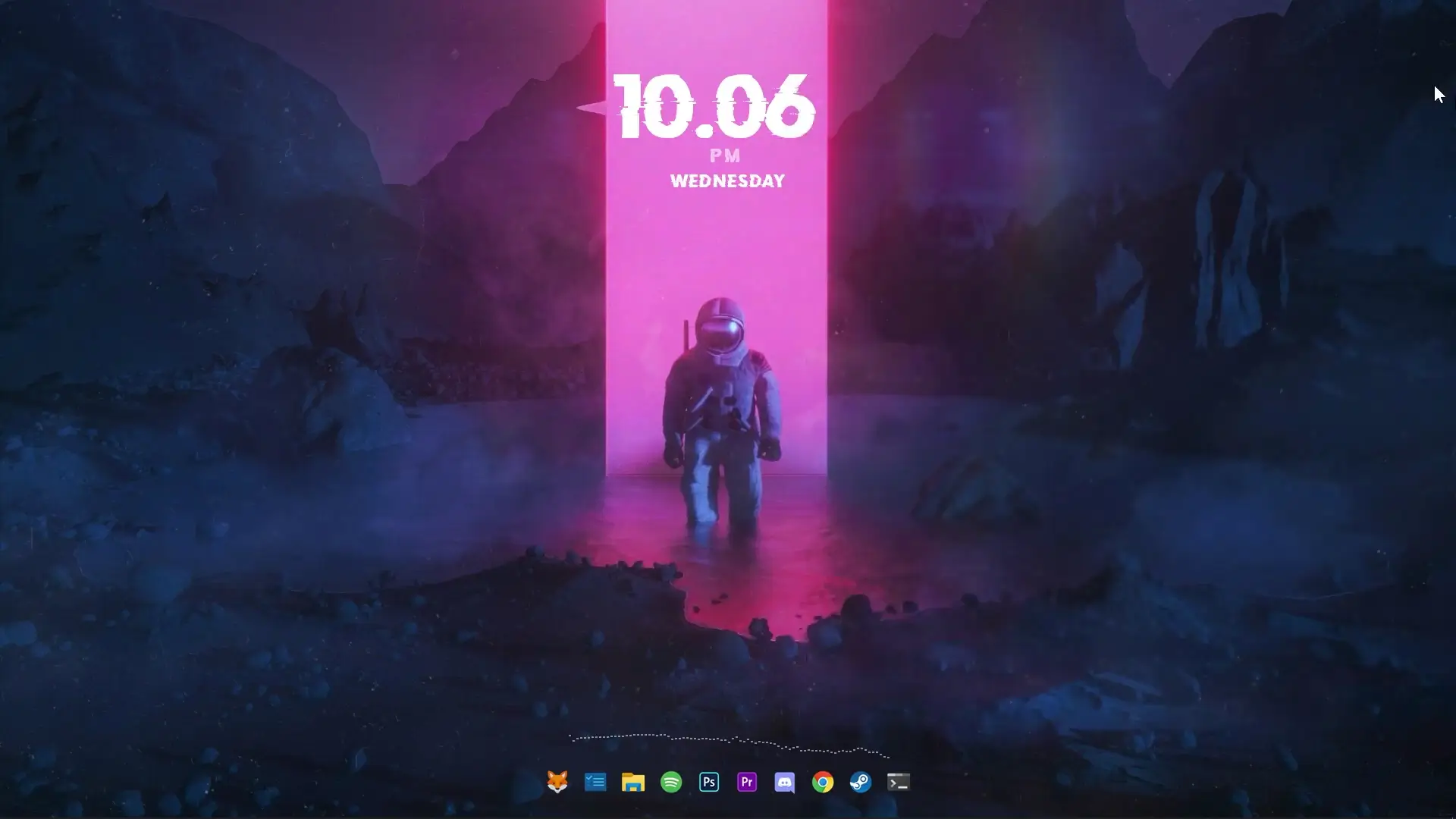
A clean and visually appealing desktop can make a big difference in how your computer feels during daily use. When your screen looks organized and unique, it often becomes easier to stay focused on tasks. Customizing your desktop with the right wallpaper, widgets, and dock layout can transform an ordinary Windows setup into something much more interesting. One of the most popular customization styles right now is the astronaut theme desktop setup, which combines a futuristic space wallpaper with modern widgets and dock icons to create a sleek workspace.
In this guide, you will learn how to apply the astronaut theme setup shown in the video. The setup uses a few well-known desktop customization tools such as Rainmeter, Winstep Nexus Dock, and Lively Wallpaper. When combined with the astronaut wallpaper and widgets, the final result gives your desktop a fresh and minimal look.
Why Customize Your Desktop?
Many people use their computers for several hours every day. A well-designed desktop environment can make the experience more enjoyable and organized. Instead of looking at the same default background and icons, customization allows you to build a workspace that matches your taste.
A space-style desktop theme is especially popular because it creates a calm and modern atmosphere. Astronaut wallpapers often feature deep space backgrounds, glowing elements, and minimal color palettes, which look great with transparent widgets and futuristic clocks.
Besides appearance, customization can also help with usability. Widgets can display useful information such as time, system stats, and shortcuts, making it easier to access important tools quickly.
Tools Required for the Astronaut Theme Setup
To recreate the astronaut desktop shown in the tutorial, you will need a few customization applications. These tools are widely used by Windows users for desktop theming.
🔥 DOWNLOAD 🔥
- Rainmeter
- Theme SETUP ZIP (includes all customization files)
- Winstep Nexus Dock
- Lively Wallpaper
Rainmeter
Rainmeter is one of the most popular desktop customization tools. It allows users to add widgets like clocks, system monitors, music players, and visual elements directly onto the desktop.
Winstep Nexus Dock
This application adds a stylish dock to your desktop, similar to the dock found on macOS. You can place frequently used apps in the dock for quick access.
Lively Wallpaper
Lively Wallpaper allows you to use animated or interactive wallpapers on your desktop. If you prefer, you can also use Wallpaper Engine from Steam to apply the astronaut animated wallpaper.
Theme Setup Files
The setup package usually includes the astronaut wallpaper, widget skins, dock icons, and configuration files needed to complete the theme.
Step-by-Step Astronaut Desktop Setup
Follow these steps to apply the astronaut theme to your desktop.
Step 1: Install Rainmeter
Download and install Rainmeter on your system. After installing, you may see some default widgets on the desktop. Right-click on each widget and select Unload Skin to remove them.
Step 2: Extract the Theme Setup
Extract the downloaded theme ZIP file. Inside the folder, you will find the wallpaper and customization files.
Right-click on Astronaut.jpg and choose Set as Desktop Wallpaper. This will apply the space background used in the theme.
Next, locate the dock_icons folder. Cut this folder and paste it into Local Disk (C:).
Step 3: Install Rainmeter Skins
Inside the theme folder, find Glitch Clock.rmskin and install it. This will add the clock widget used in the setup.
After that, locate the DeltaFFT folder. Cut it and paste it into:
Documents → Rainmeter → Skins
This will allow Rainmeter to detect and load the widget files.
Step 4: Activate Widgets
Open Rainmeter from the system tray and start loading the widgets one by one. Position them on your desktop according to the layout shown in the tutorial video.
Widgets usually include a glitch-style digital clock and other visual elements that match the astronaut theme.
Step 5: Enable Live Wallpaper (Optional)
If you want the animated version of the astronaut wallpaper, you can enable it using Lively Wallpaper.
Simply drag the provided wallpaper file into the Lively Wallpaper window to activate it. Alternatively, if you prefer Wallpaper Engine, you can download the astronaut wallpaper version available on Steam.
Final Result
After completing all the steps, your desktop will have a clean astronaut-style layout featuring a futuristic clock widget, a smooth application dock, and a high-resolution space wallpaper. The overall look is minimal but visually impressive.
Desktop customization is a great way to make your computer feel more personal. With tools like Rainmeter and Lively Wallpaper, it becomes easy to build themes that match your style. If you enjoy space-inspired designs, the astronaut desktop setup is a great choice to give your workstation a modern and unique appearance.