Many people use their computer every day but rarely change how their desktop looks. Over time the default desktop can start to feel boring and unorganized. The good news is that you can easily transform the appearance of your desktop with a few simple customization tools. In this guide, you will learn how to give your desktop a completely new look using a popular customization tool and a few theme files.
Why Customize Your Desktop?
Customizing your desktop is not only about appearance. It can also improve how you interact with your computer. A well-designed desktop can make it easier to access important information such as time, system usage, weather, and shortcuts to your favorite apps.
Many users enjoy adding widgets, stylish icons, and modern themes to create a clean and attractive workspace. With the right setup, your desktop can look similar to premium setups often shared by tech creators.
Tools Required for Desktop Customization
To achieve a fresh desktop design, you will need a few tools and files. These help you apply themes, widgets, and visual elements to your system.
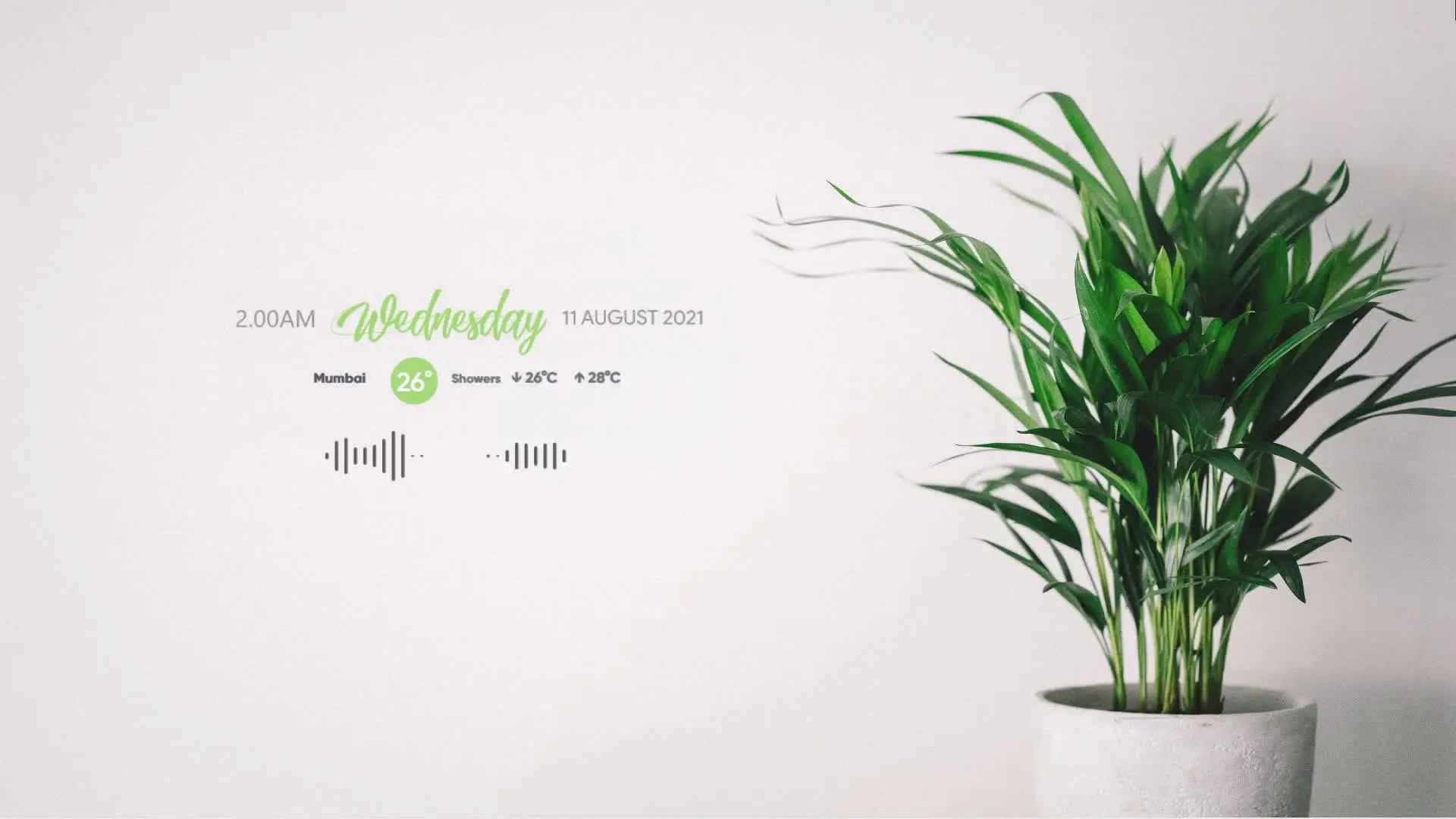
The most important tool used in this tutorial is Rainmeter. Rainmeter is a popular desktop customization software that allows you to add widgets, skins, and themes to your desktop. With Rainmeter, you can display information like system performance, clocks, music players, and more.
You will also need additional theme files and customization resources. These files contain the visual elements used to design the desktop layout shown in the tutorial.
The required downloads include:
Once you download these files, you will be ready to begin the customization process.
Step-by-Step Process to Change Your Desktop Look
First, download and install Rainmeter on your computer. The installation process is simple and only takes a few minutes. After installing it, restart your computer if necessary.
Next, extract the zip file that contains the theme customization files. These files usually include Rainmeter skins, icons, wallpapers, and configuration files that control how the desktop layout appears.
After extraction, import or install the skins into Rainmeter. Once they are added, you can activate the skins from the Rainmeter control panel.
You can then arrange the widgets on your desktop according to the design shown in the tutorial. Widgets can display useful information like CPU usage, date and time, music player controls, and system status.
Adjust the placement of these elements until your desktop layout looks clean and balanced.
Tips for Better Desktop Design
When customizing your desktop, it is a good idea to keep the layout simple. Too many widgets can make the desktop look cluttered and reduce performance.
Choose a wallpaper that matches the color theme of your widgets and icons. Dark wallpapers often work well with modern Rainmeter skins.
You can also experiment with different icon packs and taskbar styles to make the desktop look even more polished.
Final Thoughts
Giving your desktop a new look does not require advanced technical skills. With tools like Rainmeter and a few theme files, you can completely transform the appearance of your computer in just a few minutes.
By following the steps shown in the tutorial, you can create a stylish and functional desktop setup that looks far more modern than the default Windows layout. If you enjoy customizing your system, you can continue experimenting with different Rainmeter skins and themes to create a setup that matches your personal style.