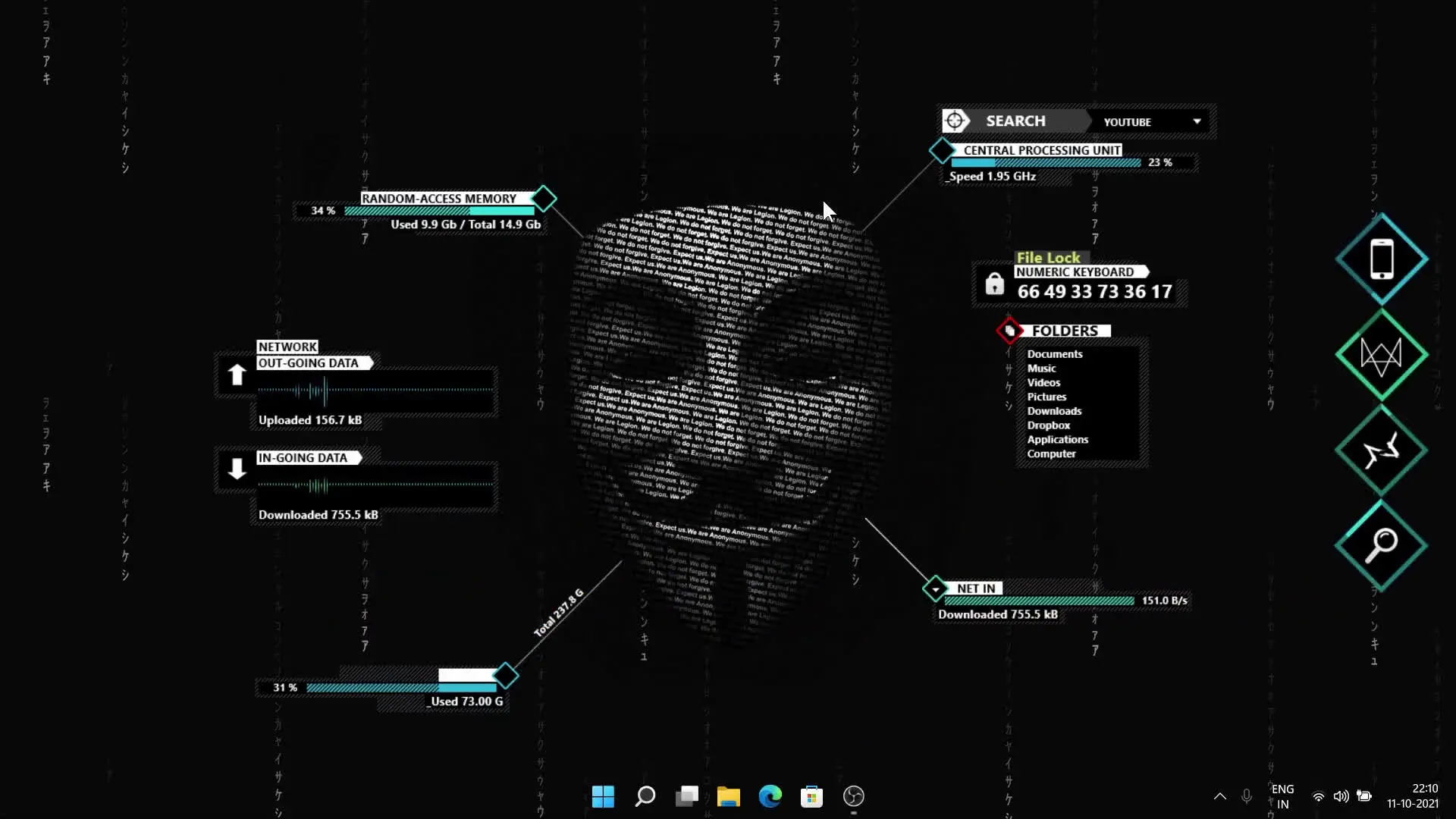
Many people like to customize their computer so it looks unique and interesting. One popular style is the hacker theme, which gives your desktop a futuristic look with animated backgrounds and system information widgets. In this guide, we explain how to apply a hacker-style theme on Windows 10 and Windows 11 using two simple tools. The process is beginner-friendly and does not require advanced technical knowledge.
This setup mainly uses Lively Wallpaper and Rainmeter, along with a theme pack that contains the required files.
What You Need Before Starting
Before applying the theme, make sure you download and install the following items.
These tools help create the animated desktop and system monitoring widgets that give the hacker-style appearance.
Step 1: Install Lively Wallpaper
Lively Wallpaper is a free application that allows you to use animated or video backgrounds on your Windows desktop.
After downloading the program, install it on your computer like any normal Windows application. Once installed, open the application and keep it running in the background.
The main purpose of Lively Wallpaper in this setup is to display the animated hacker-style wallpaper that gives the desktop its dynamic appearance.
Step 2: Install Rainmeter
Rainmeter is another popular desktop customization tool for Windows. It allows users to add widgets to the desktop such as:
- CPU usage
- RAM usage
- Network speed
- System clock
- Custom visual elements
Download Rainmeter and install it on your system. After installation, the program will run automatically and allow you to load skins from external files.
Rainmeter is responsible for the hacker-style panels, information bars, and other visual elements shown on the desktop.
Step 3: Download the Hacker Theme Zip File
Next, download the Hacker Theme Tech Rifle Zip File. This file contains the theme components required for the setup.
After downloading, extract the zip file using Windows extraction or any archive software.
Inside the extracted folder you will typically see two main folders:
- Lively Folder
- Rainmeter Skin
Each folder contains files used by the respective applications.
Step 4: Apply the Animated Wallpaper
Open Lively Wallpaper and import the wallpaper file from the Lively Folder that came with the theme package.
Once added, select the wallpaper and apply it. The desktop background will now display the animated hacker-style visuals.
This animated background creates the foundation for the overall theme.
Step 5: Install Rainmeter Skins
Now open Rainmeter and load the skins included in the Rainmeter Skin folder.
To install the skins:
- Open Rainmeter.
- Import the skin files.
- Activate the widgets you want to display.
You can place the widgets anywhere on your desktop. Most people position them on the sides of the screen to match the hacker-style layout.
These widgets will show system information in real time and complete the theme design.
Customizing the Layout
After installing everything, you can adjust the layout according to your preference. Rainmeter skins can be moved, resized, or disabled if you want a cleaner desktop.
You may also change the wallpaper within Lively Wallpaper if you want a slightly different animation style while keeping the same theme setup.
Final Result
Once both tools are configured, your desktop will display:
- An animated hacker-style background
- System monitoring widgets
- A futuristic interface layout
This theme works well on both Windows 10 and Windows 11, and the setup only requires a few minutes.