Call recording has become an essential tool for millions of smartphone users worldwide. Whether you’re documenting business agreements, preserving important conversations, or keeping records for legal purposes, understanding how to record calls safely and legally is crucial.
This comprehensive guide covers everything you need to know about call recording in 2026, including legal requirements in India, the best methods for both Android and iPhone devices, recommended apps, and reliable hardware solutions.
Why Call Recording Matters in 2026
Business and Professional Benefits
Modern professionals rely on call recordings for multiple critical purposes:
- Accurate Documentation: Record client meetings, project discussions, and business negotiations without missing crucial details
- Quality Assurance: Review customer service interactions and improve communication strategies
- Training Resources: Create learning materials for new team members based on real conversations
- Dispute Resolution: Maintain clear records of agreements and commitments made during calls
- Interview Recordings: Journalists and researchers can capture interviews with precise accuracy
Personal Use Cases
Beyond professional applications, individuals use call recording for:
- Medical Information: Keep accurate records of doctor’s instructions and medical advice
- Family Memories: Preserve meaningful conversations with loved ones
- Educational Purposes: Students record lectures and study sessions for later review
- Legal Protection: Document important agreements or potential harassment situations
- Customer Support: Keep records of conversations with service providers and companies
Understanding Call Recording Laws in India (2026)
The Legal Framework
Call recording legality in India operates within a complex framework of regulations. There is no single dedicated law specifically governing call recording, but several statutes provide guidance.
Key Legislation
Indian Telegraph Act, 1885: This historic legislation prohibits unauthorized interception of communications. While it primarily addresses government powers to tap phones for national security, it establishes the foundation for privacy in telecommunications.
Information Technology Act, 2000: This Act governs electronic evidence and data privacy, providing regulations for electronically stored recordings and their admissibility.
Indian Constitution, Article 21: The landmark Puttaswamy judgment of 2017 established privacy as a fundamental right, significantly impacting how call recordings are viewed legally.
One-Party vs. Two-Party Consent
India generally follows a one-party consent rule, which means:
- Legal: You can record a conversation where you are a participant without informing the other party
- Illegal: Recording conversations between two other people without their knowledge (third-party recording)
- Best Practice: Always inform all participants that the call is being recorded, even though it’s not legally required
Legal Consequences of Misuse
While recording your own calls is legal, misusing recordings can result in serious penalties:
- Fines: Up to ₹1,00,000 under various privacy laws
- Imprisonment: Severe violations, especially malicious use like blackmail or defamation, can result in jail time
- Civil Liability: Victims can seek damages through civil courts
- Criminal Charges: Using recordings for harassment, intimidation, or fraud carries criminal penalties
Admissibility as Legal Evidence
According to Section 65B of the Indian Evidence Act, 1872, call recordings can serve as admissible evidence in court if they meet specific conditions:
- Voice Recognition: The voices in the recording must be clearly recognizable
- Authenticity: Evidence must be provided to verify the recording’s genuineness
- Relevance: The recording must be directly relevant to the case
- No Tampering: The recording must not be edited, altered, or manipulated
- Proper Storage: The original recording device should be preserved and sealed when possible
- Clear Audio: The conversation must be understandable and clear
The landmark case R.M. Malkani v. State of Maharashtra (1973) established important precedents, confirming that participants in a conversation can record calls and use them as evidence.
Recent Legal Developments (2025-2026)
Recent court rulings have emphasized privacy protection:
- Sanjay Pandey v. Directorate of Enforcement (Delhi HC): Ruled that recording calls without consent can violate privacy rights
- Aasha Lata v. Durgesh Soni (Chhattisgarh HC): Similar ruling emphasizing the importance of consent
- Courts increasingly scrutinize recordings obtained without knowledge of all parties
Regional and Business Considerations
For Businesses: Companies must implement proper consent management systems, especially when recording customer service calls. Many businesses use automated announcements like “This call may be recorded for quality and training purposes.”
For Individuals: While you can legally record your own calls, always consider ethical implications and inform others when possible to maintain trust and transparency.
How to Record Calls on Android (2026)
Android devices offer multiple methods for call recording, though availability varies by device manufacturer, region, and Android version.
Method 1: Built-in Call Recording Features
Many Android manufacturers include native call recording functionality:
Google Pixel Phones
- Open the Phone app
- Tap the three-dot menu in the top-right corner
- Select Settings
- Navigate to Call Recording
- Enable Always record or choose specific numbers to record
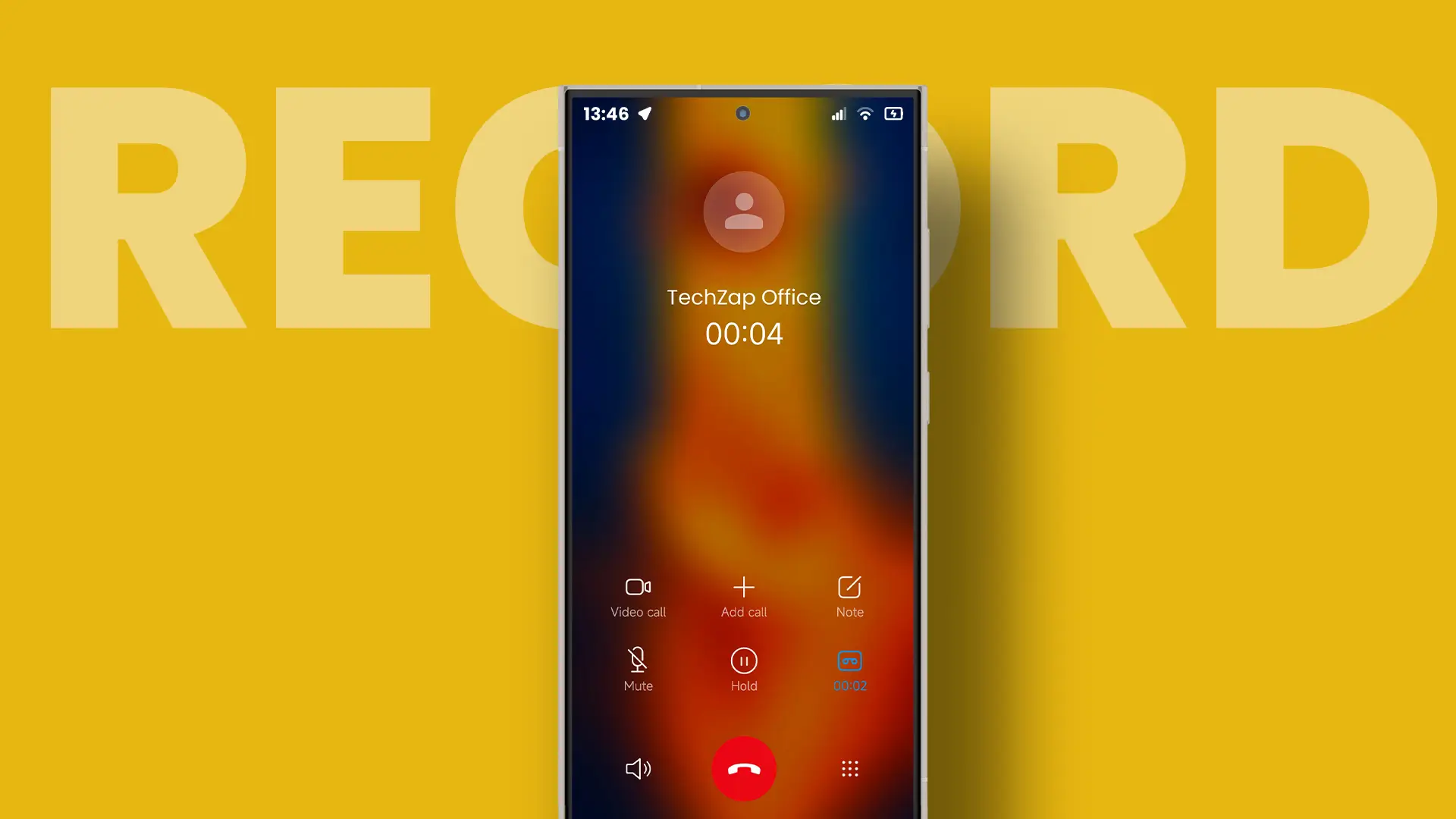
- During calls, tap the Record button to start recording
- Recordings are saved in the Phone app under the Recents tab
Note: This feature is region-dependent and may not be available in all countries due to local privacy laws.
Samsung Galaxy Devices
- Open the Phone app
- During an active call, tap More or the three-dot menu
- Select Record call
- A notification appears indicating recording has started
- Access recordings through Phone app > Menu > Settings > Call settings > Call recording
Regional Restrictions: Samsung’s call recording is disabled in many regions, including the United States and European Union countries.
OnePlus, Xiaomi, and Other Manufacturers
Many Chinese Android manufacturers (OnePlus, Xiaomi, Realme, Oppo, Vivo) include robust built-in call recording features that work in specific markets.
Method 2: Google Phone App (Limited Availability)
The Google Phone app includes call recording for supported devices:
- Download Google Phone from the Play Store (if not pre-installed)
- Set it as your default Phone app
- Go to Settings > Call recording
- Choose your recording preferences
- The feature announces to all parties when recording begins
Limitations:
- Only available in select regions
- Requires Android 9 or higher
- May stop working if phone storage is full
Method 3: Third-Party Call Recording Apps (2026)
Due to Android policy changes and privacy restrictions, third-party apps face challenges. However, several still work effectively:
Top Android Call Recording Apps
1. Cube Call Recorder (ACR)
- Pricing: Free with premium features ($9.99/year)
- Features:
- Records regular calls and VoIP (WhatsApp, Skype, Telegram, Viber)
- Cloud backup integration (Google Drive, Dropbox)
- PIN/fingerprint protection
- Shake to mark important moments
- Automatic old recording deletion
- Multiple audio sources and quality settings
- Compatibility: Works on most Android devices
- User Rating: 4.5/5 stars
- Best For: Users who need VoIP call recording
2. Automatic Call Recorder Pro by SMSROBOT
- Pricing: $3.49 one-time payment to remove ads
- Features:
- Automatic recording of all calls
- Accessibility permissions-based recording
- Simple, functional interface
- Good audio quality
- No subscription required
- Compatibility: Android 10+
- User Rating: 4.4/5 stars
- Best For: Users seeking a one-time payment option
3. Call Recorder – Auto Call Recorder
- Pricing: Free with in-app purchases
- Features:
- Automatic recording with custom contact lists
- Ignore lists for excluded contacts
- Cloud backup (Dropbox, Google Drive)
- Caller ID for unknown numbers
- Audio note attachment
- Compatibility: Android 8.0+
- Best For: Selective recording needs
4. Truecaller (with Call Recording)
- Pricing: Free with premium at $2.99/month
- Features:
- Spam call blocking
- Caller ID
- Call recording functionality
- AI-powered spam detection
- Compatibility: Most Android devices
- Best For: Users who also need spam protection
Android Call Recording Challenges (2026)
Android 10+ Restrictions: Google has progressively restricted call recording through:
- API limitations blocking access to call audio
- Google Play Store policy restrictions
- Accessibility service restrictions
Common Issues:
- Apps may record only one side of the conversation
- Audio quality can be inconsistent
- Some apps crash during long calls
- Regional restrictions disable features
- Wi-Fi calling often incompatible with recording apps
- Storage limitations can interrupt recordings
Workarounds:
- Use accessibility permissions (where allowed)
- Download apps from outside Google Play Store (advanced users)
- Root access (not recommended for most users)
- Hardware recording devices (most reliable)
iPhone Call Recording Solutions (2026)
Apple has historically restricted call recording due to privacy concerns, but iOS 18 introduced significant changes.
Method 1: iOS 18 Native Call Recording (Recommended)
Apple introduced built-in call recording with iOS 18.1, released in October 2024.
Requirements
- Devices: iPhone XS or newer (iPhone XS, XR, 11, 12, 13, 14, 15, 16 series)
- Operating System: iOS 18.1 or later
- Regional Availability: Available in most countries except EU nations and some other regions with strict privacy laws
- Apple Intelligence Features: iPhone 15 Pro/Pro Max or iPhone 16 series (for AI summaries)
How to Enable and Use
- Enable the Feature:
- Go to Settings > Apps > Phone
- Find Call Recording
- Toggle it On (enabled by default)
- Record a Call:
- Make or receive a call using the Phone app
- Tap the waveform icon in the top-left corner
- A countdown begins, followed by an automatic announcement: “This call will be recorded”
- All participants hear this announcement
- Recording indicator remains visible throughout the call
- Stop Recording:
- Tap the stop button, or
- Simply hang up the call (recording stops automatically)
- Access Recordings:
- Open the Notes app
- Find the Call Recordings folder
- Tap any recording to play, transcribe, or share
Advanced Features
Automatic Transcription:
- Available in English (US, UK, Australia, Canada, India, Ireland, New Zealand, Singapore)
- Also supports Spanish, Mandarin Chinese, Cantonese, and Korean
- Transcription happens on-device for privacy
- Shows speaker identification
- Searchable text format
Apple Intelligence Summaries (iPhone 15 Pro+ only):
- AI-generated call summaries
- Key points extraction
- Action items identification
- Requires Apple Intelligence to be enabled
Privacy and Security:
- All recordings stored locally with end-to-end encryption
- Mandatory announcement to all parties
- Cannot be disabled or made silent
- Recordings saved in Notes app, not Phone app
Method 2: Third-Party iPhone Apps
While iOS 18 offers native recording, some situations may require third-party solutions:
Google Voice (US Only)
- Availability: United States only
- Limitation: Only records incoming calls to your Google Voice number
- How to Use:
- Set up a Google Voice number
- Enable recording in Google Voice settings
- Press “4” during a call to start recording
- Both parties hear an announcement
TapeACall
- Pricing: $10.99/month or $69.99/year
- Method: Uses conference calling feature
- How It Works:
- Start or receive a call
- Open TapeACall app
- Merge calls to include recording line
- Limitations: Requires carrier conference call support
Rev Call Recorder
- Pricing: Free for recording; paid transcription services
- Features:
- Records VoIP calls (Zoom, Teams, Skype)
- Easy sharing options
- Clean interface
- Best For: Remote workers and podcasters
Method 3: Speakerphone + Voice Memos (Basic Solution)
A free but less reliable method:
- During a call, enable Speakerphone
- Open Voice Memos app on another device
- Start recording
- Place both devices close together
Drawbacks:
- Poor audio quality
- Background noise interference
- Requires a second device
- Cannot use phone during recording
Hardware Call Recording Solutions
For users facing software limitations or requiring the highest quality recordings, hardware devices offer the most reliable solution.
Plaud Note – Premium Hardware Recorder
Overview: A dedicated hardware recording device that works with both Android and iPhone.
Key Features
Design and Compatibility:
- Magnetic MagSafe attachment for iPhone 12+
- Adhesive ring adapter for non-MagSafe devices and Android phones
- Ultra-thin profile doesn’t interfere with phone use
- Works with phone cases
Recording Modes:
- Phone Call Mode: Flip switch up
- Records cellular calls
- Captures VoIP calls (WhatsApp, Zoom, FaceTime, Teams)
- No speakerphone required
- Works with any calling platform
- On-Site Mode: Flip switch down
- Records in-person meetings
- Captures lectures and presentations
- Conference recording
Technical Specifications:
- Storage: 64GB internal memory (thousands of hours)
- Battery Life:
- 50+ hours continuous recording
- 60 days standby time
- Activation: Press and hold button until vibration confirms
Plaud Intelligence AI Features:
- Transcription: Converts audio to text with high accuracy
- Language Support: 112+ languages worldwide
- Smart Summaries: AI-generated call summaries
- Action Items: Automatic task extraction
- Speaker Identification: Distinguishes between different voices
- Templates: 3,000+ professional formatting options
- Time Savings: Users report saving ~260 hours annually
Pricing:
- Device: $159-$179 (one-time)
- Plaud Intelligence: Subscription-based ($79/year)
Pros:
- Works across all platforms and devices
- No app restrictions or OS limitations
- Superior audio quality
- Massive storage and battery life
- Comprehensive AI features
- Legal compliance (manual control)
Cons:
- Additional hardware to carry
- Subscription required for AI features
- Higher upfront cost than apps
Alternative Hardware Options
1. Bluetooth Call Recorders
- Attach to phone via Bluetooth
- Record directly to device memory
- Typically $50-$100
- Examples: Magmo Pro, PhotoFast Call Recorder
2. Telephone Recording Adapters
- Connect between phone and headphones
- Record to external recorder
- Budget-friendly ($20-$50)
- Better for landline recording
3. Professional Recording Devices
- Used by journalists and legal professionals
- High-fidelity audio capture
- Often include advanced features
- Price range: $200-$500+
Best Practices for Legal and Ethical Call Recording
Before Recording
- Know Your Local Laws: Research regulations in your country, state, or region
- Inform Participants: Even if not legally required, transparency builds trust
- Obtain Consent: Get verbal agreement before recording sensitive conversations
- Document Purpose: Have a legitimate reason for recording
During Recording
- Announce at Start: Make it clear the call is being recorded
- Respect Objections: Stop recording if someone expresses discomfort
- Monitor Storage: Ensure adequate space for the full conversation
- Test Audio Quality: Verify both sides are being captured clearly
After Recording
- Secure Storage: Protect recordings with encryption or password protection
- Limited Sharing: Only share recordings with authorized individuals
- Retention Policy: Delete recordings when no longer needed
- Label Clearly: Organize files with date, participants, and purpose
- Backup Important Calls: Store critical recordings in multiple secure locations
What NOT to Do
Never:
- Record without any participant’s knowledge (third-party recording)
- Use recordings for blackmail, harassment, or intimidation
- Share private recordings publicly without consent
- Edit or manipulate recordings to misrepresent conversations
- Record in situations with reasonable expectation of privacy (unless you’re a participant)
- Use recordings for commercial purposes without explicit consent
- Retain recordings longer than necessary
Comparison: Apps vs. Hardware Solutions
When to Use Apps
Best For:
- Occasional call recording needs
- Budget-conscious users
- Those comfortable with technical setup
- Recording primarily on one platform
- Business uses with company-provided tools
Advantages:
- Lower cost (many free options)
- Immediate availability
- Built-in cloud storage options
- Easy to update and improve
- Integrated with existing phone features
Disadvantages:
- Platform and region restrictions
- Variable audio quality
- May fail during important calls
- Limited by OS updates
- Privacy concerns with cloud storage
- Subscription fees for premium features
When to Use Hardware
Best For:
- Professional and business users
- Those needing cross-platform compatibility
- High-stakes recordings (legal, medical)
- Users facing app restrictions
- Maximum reliability requirements
Advantages:
- Works across all platforms
- Consistent, high-quality audio
- No software dependencies
- Long battery life
- Large storage capacity
- AI transcription features (premium models)
Disadvantages:
- Higher upfront investment
- Additional device to carry and maintain
- May require subscription for AI features
- Learning curve for optimal use
Troubleshooting Common Call Recording Issues
Android Issues
Problem: Recording feature missing or grayed out
- Solution: Check if feature is available in your region; consider third-party apps or hardware
Problem: Only one side of conversation recorded
- Solution: Try different audio source settings in app; update app; consider hardware recorder
Problem: App crashes during calls
- Solution: Clear app cache; update to latest version; try alternative apps
Problem: Storage full error
- Solution: Delete old recordings; move to cloud storage; increase available space
iPhone Issues
Problem: No recording button visible in iOS 18
- Solution: Verify iOS 18.1+ installed; check regional availability; ensure feature enabled in Settings
Problem: Poor audio quality with third-party apps
- Solution: Use iOS 18 native feature if available; switch to hardware solution
Problem: Announcement too loud or intrusive
- Solution: This is intentional and cannot be disabled for privacy compliance
Universal Issues
Problem: Legal concerns about recording
- Solution: Always inform participants; research local laws; seek legal advice for business use
Problem: Difficulty organizing recordings
- Solution: Use apps with tagging features; implement consistent naming convention; regular archiving
Future of Call Recording Technology
Emerging Trends (2026-2027)
AI Integration: Advanced features like:
- Real-time transcription during calls
- Sentiment analysis
- Automatic action item extraction
- Multi-language translation
- Voice biometrics for speaker identification
Privacy Enhancements:
- Blockchain-based recording verification
- Enhanced encryption standards
- Automatic consent management systems
- Privacy-preserving audio processing
Cross-Platform Solutions:
- Unified recording across devices
- Cloud synchronization with strong encryption
- Platform-agnostic hardware devices
Regulatory Developments
Expect continued evolution of privacy laws globally:
- Stricter consent requirements
- Increased transparency obligations
- Enhanced user control over recordings
- Harmonization of international standards
Conclusion
Call recording in 2026 offers numerous options for both Android and iPhone users, but success requires understanding legal requirements, choosing the right tools, and following best practices.
Key Takeaways
- Legal Compliance: In India, one-party consent is generally acceptable, but always inform others when recording
- Android Options: Built-in features (region-dependent), Google Phone app, or third-party apps like Cube ACR
- iPhone Solutions: iOS 18 native recording (best option), limited third-party apps, or hardware devices
- Hardware Advantage: Devices like Plaud Note offer reliability, superior quality, and cross-platform compatibility
- Best Practice: Transparency and consent protect you legally and maintain trust
Final Recommendations
For Most Users:
- iPhone: Use iOS 18 native call recording (if available in your region)
- Android: Try built-in features first, then reliable apps like Cube ACR
For Professionals:
- Invest in quality hardware like Plaud Note for reliability and advanced AI features
- Implement proper consent management and storage policies
- Consider legal consultation for business recording policies
For Everyone:
- Always prioritize transparency and consent
- Secure your recordings properly
- Use recordings responsibly and ethically
- Stay informed about changing regulations
Remember, the goal of call recording should always be legitimate documentation and protection, never deception or misuse. By following legal guidelines and ethical practices, you can leverage this powerful technology while respecting everyone’s privacy rights.
Disclaimer: This guide provides general information about call recording. Laws vary by jurisdiction and change over time. Always consult local regulations and legal professionals for specific advice regarding your situation.