Apple AirTags have revolutionized how we keep track of personal belongings. Whether you’ve attached one to your keys, slipped another into your backpack, or placed one in your luggage, these small tracking devices make finding lost items remarkably simple through Apple’s Find My app.
This comprehensive guide will walk you through everything you need to know about tracking your AirTags, from basic location features to advanced recovery methods when items go missing.
What Are Apple AirTags and How Do They Work?
Apple AirTags are compact, coin-shaped tracking devices that connect to your Apple ID through the Find My network. Each AirTag uses Bluetooth technology to communicate with nearby Apple devices, creating a vast crowdsourced network of over 2 billion active devices worldwide that can help locate your lost items.
Key Features of AirTags
- Precision Finding: Uses Ultra Wideband technology on iPhone 11 and newer models
- Find My Network: Leverages hundreds of millions of Apple devices globally
- Long Battery Life: CR2032 battery lasts over one year
- Water Resistance: IP67 rating protects against water and dust
- Privacy Protection: End-to-end encrypted location data
- Share AirTag: Can be shared with up to five people for commonly used items
How to Track Your AirTag’s Location in Real-Time
Before you can track an AirTag, ensure it’s properly set up and linked to your Apple ID. Once configured, follow these steps to locate your items:
Step 1: Open the Find My App
Launch the Find My app on your iPhone or iPad. This app comes pre-installed on all iOS devices running iOS 14.5 or later.
Step 2: Navigate to Your AirTag
- Tap the Items tab at the bottom of the screen
- Locate and select the specific AirTag you want to track from your list
- The app will display the AirTag’s current or last known location on a map
Step 3: Use the Find Feature
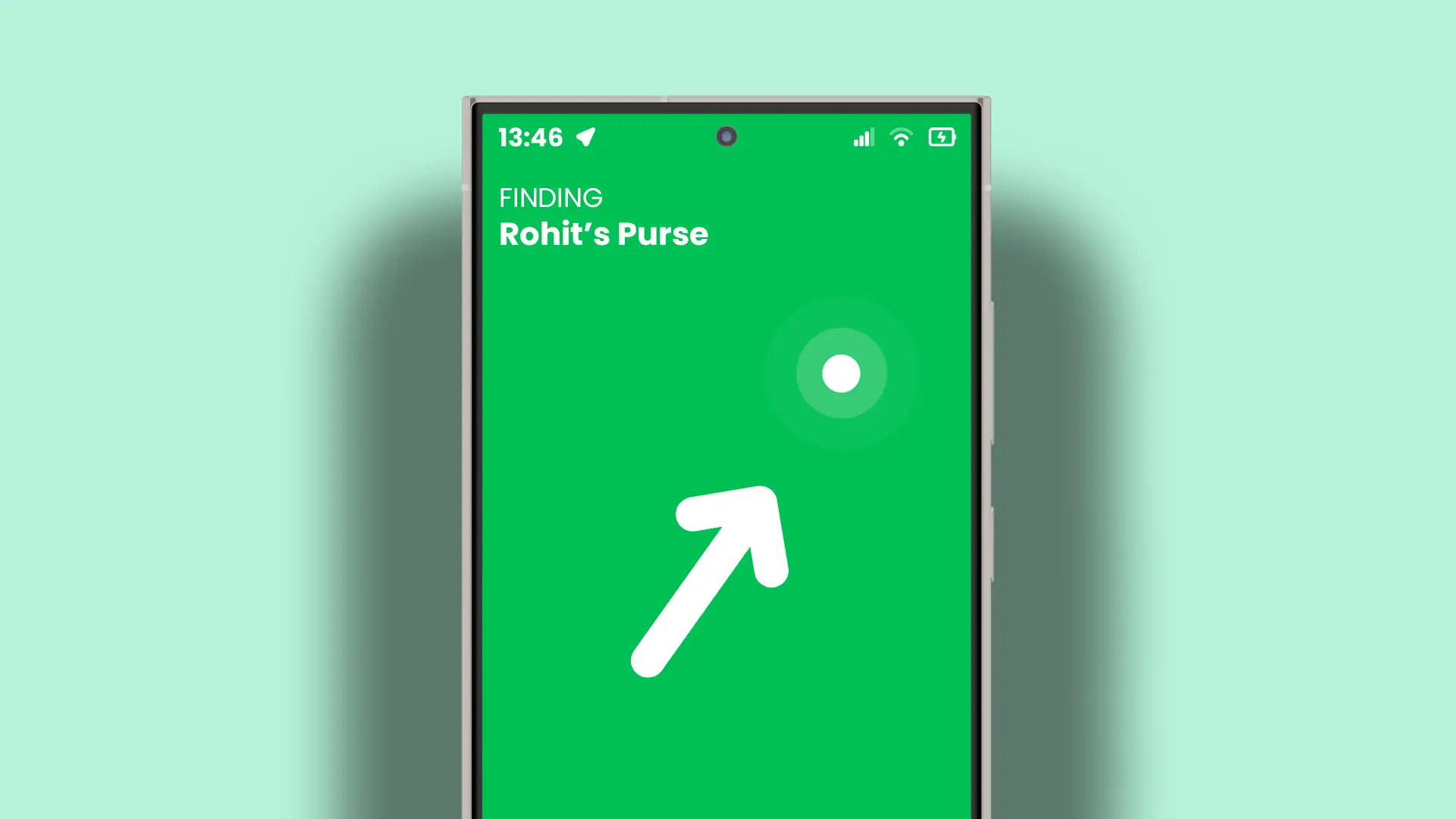
Tap the Find button (a green circle with a white arrow) to initiate tracking. The app will provide on-screen guidance to help you reach your AirTag’s location.
Understanding Precision Finding on iPhone 11 and Newer
If you own an iPhone 11 or later model, you’ll have access to Precision Finding, an advanced feature that uses Apple’s U1 Ultra Wideband chip for exceptionally accurate tracking.
How Precision Finding Works
When you activate Precision Finding:
- Distance Display: Your screen shows exactly how far away the AirTag is in feet or meters
- Directional Arrows: Visual indicators point you in the correct direction
- Real-Time Updates: The distance and direction update as you move
- Visual Confirmation: The screen turns green when you’re very close to the AirTag
This technology combines input from your camera, ARKit, accelerometer, and gyroscope to provide a directionally aware finding experience that’s far more accurate than standard Bluetooth tracking.
For Older iPhone and iPad Models
If you’re using an older device without the U1 chip, Precision Finding won’t be available. However, you can still locate your AirTag using:
- Map-based directions in the Find My app
- Sound alerts from the AirTag’s built-in speaker
- Last known location data
Playing a Sound to Locate Nearby AirTags
When your AirTag is close but not visible, the sound feature becomes invaluable:
- Open the Find My app and select your AirTag
- Tap the Sound button
- The AirTag will emit a beeping sound
- Follow the sound to locate your item
- Tap the X button to stop tracking and remove on-screen directions
This feature works particularly well when items are hidden under furniture, buried in bags, or obscured from view.
Using Maps and Directions for Distant AirTags
When your AirTag is beyond Bluetooth range, Apple Maps integration helps you navigate to its location.
Getting Directions to Your AirTag
- Open the Find My app
- Tap on the Items section
- Select the AirTag you want to locate
- Tap the Directions button to open Apple Maps
- Tap Go To and follow the walking or driving directions
This feature is essential when you’ve left an item at another location or when tracking luggage during travel.
Setting Up Smart Notifications
The Find My app offers powerful notification features to keep you informed about your AirTag’s status.
Notify When Found Feature
This alert system is particularly useful when an AirTag has been out of range for an extended period:
- Open the Find My app and navigate to Items
- Select your AirTag
- Scroll to the Notifications section
- Toggle on Notify When Found
Once enabled, you’ll receive an automatic alert when your AirTag reconnects to the Find My network through any nearby Apple device. This is invaluable for items that are moving or located far from your current position.
Viewing Last Known Location
The Find My app displays both the current location (when in range) and the last known location with a timestamp. This information helps you:
- Determine where to start your search
- Understand the item’s movement patterns
- Plan an effective recovery strategy
Activating Lost Mode for Missing Items
Lost Mode is one of the most powerful features of AirTags, designed specifically for situations where you cannot immediately retrieve your lost item.
What Lost Mode Does
When you enable Lost Mode:
- Locks the AirTag: Prevents anyone else from pairing it with their Apple ID
- Activates Find My Network: Mobilizes millions of Apple devices to search for your item
- Displays Contact Information: Shows your phone number or email to anyone who finds it
- Sends Notifications: Alerts you when the AirTag’s location updates
How to Enable Lost Mode
- Open the Find My app on your iPhone
- Tap Items at the bottom of the screen
- Select the lost AirTag
- Swipe up to see full options
- Tap Lost Mode and then Enable
- Follow the on-screen prompts:
- Enter your phone number or email address
- Add a custom message (optional)
- Enable Notify When Found
- Tap Activate to enable Lost Mode
How Finders Can Help
When someone finds your AirTag in Lost Mode:
- They can tap it with any NFC-enabled iPhone or Android device
- A notification appears linking to a website
- The website displays your custom message and contact information
- They can contact you directly to return the item
Turning Off Lost Mode
Once you’ve recovered your item:
- Open the Find My app
- Tap Items and select your AirTag
- Tap Enabled under Lost Mode
- Tap Turn Off Lost Mode
- Confirm your selection
Share Item Location with Airlines (New 2025 Feature)
Apple introduced a game-changing feature for travelers in 2025, allowing you to share your AirTag’s location directly with participating airlines.
How Airline Integration Works
Airlines like Delta have integrated this feature into their baggage systems:
- If your luggage is lost, you can share your AirTag location with the airline
- The location data flows directly into the airline’s tracking system
- Airline staff can locate your bag more quickly and efficiently
- The sharing is temporary and private, protecting your privacy
This integration has significantly improved lost baggage recovery times, particularly during busy holiday travel periods.
Troubleshooting: What to Do When Your AirTag Doesn’t Appear
Sometimes AirTags may not show up in the Find My app. Here are the most common issues and their solutions.
1. Verify Your iCloud Account
AirTags are tied to a single Apple ID. If you’re signed into the wrong account, your AirTag won’t appear.
To check your account:
- Open Settings on your iPhone or iPad
- Tap your name at the top of the screen
- Verify the email address shown under your Apple ID
If it’s incorrect, sign out and sign in with the Apple ID used to set up the AirTag.
2. Enable Location Services for Find My
The Find My app requires location access to function properly.
To enable location services:
- Go to Settings > Privacy & Security
- Tap Location Services
- Scroll to find Find My in the app list
- Select While Using the App or Always
This grants the app access to your device’s GPS, enabling accurate tracking.
3. Check and Replace AirTag Battery
A depleted battery is a common reason for tracking failures.
Battery troubleshooting steps:
- Remove the AirTag’s metal back by pressing and twisting counterclockwise
- Remove the CR2032 battery
- Wait a few seconds, then reinsert it (this can reset the connection)
- If that doesn’t work, replace with a new CR2032 battery
Apple removed the detailed battery level indicator in earlier iOS versions, but detailed battery reporting is expected to return with the upcoming AirTag 2.
4. Check Bluetooth and Internet Connection
Ensure your iPhone has:
- Bluetooth enabled
- Active internet connection (Wi-Fi or cellular data)
- Updated to the latest iOS version
5. Reset Your AirTag
If problems persist, try resetting the AirTag:
- Remove the battery
- Replace the battery
- Press down on the battery until you hear a sound
- Repeat this process four more times
- On the fifth sound, hold until you hear a different tone
This completely resets the AirTag for re-pairing.
What’s Coming: AirTag 2 Features (Expected 2026)
Internal iOS 26 code has revealed exciting improvements coming to the second-generation AirTag:
Enhanced Tracking Capabilities
- Improved Range: New U2 Ultra Wideband chip offering approximately 3x the range
- Motion-Aware Tracking: Enhanced location accuracy when items are moving
- Crowded Place Optimization: Better performance in busy environments like airports
- Detailed Battery Reporting: Real-time battery level monitoring
Better User Experience
- Improved Pairing Process: Faster and more intuitive setup
- Louder Speaker: Harder to disable and easier to hear
- Enhanced Privacy Controls: Better integration with Android anti-stalking features
These improvements address current limitations and will make AirTag 2 even more effective for tracking belongings in various scenarios.
Best Practices for Using AirTags Effectively
Optimize Your Setup
- Name Your AirTags Clearly: Use specific names like “Car Keys” or “Travel Backpack”
- Choose Strategic Placement: Ensure the AirTag is securely attached and won’t fall off
- Enable All Notifications: Stay informed about your AirTag’s status
- Share with Family: For commonly used items, share access with up to five people
Privacy and Security Tips
- Respect Others’ Privacy: Don’t use AirTags to track people without their knowledge
- Understand Anti-Stalking Features: Learn how AirTags alert others to unwanted tracking
- Secure Your Apple ID: Use strong passwords and two-factor authentication
- Review Your AirTags Regularly: Check which items you’re tracking and remove unused ones
Travel Recommendations
- Place in Luggage Pockets: Use interior pockets where AirTags won’t be easily removed
- Keep Battery Fresh: Replace batteries before long trips
- Enable Lost Mode Preemptively: For valuable luggage, consider activating before travel
- Know Airline Policies: Some airlines have specific rules about tracking devices
Common Use Cases for AirTags
Daily Items
- Keys and keychains
- Wallets and purses
- Backpacks and laptop bags
- Remote controls
Travel and Commute
- Luggage and suitcases
- Camera bags
- Musical instruments
- Bicycles (with secure mounting)
Pets and Vehicles
- Pet collars (as a backup to GPS trackers)
- Vehicles in parking lots
- Motorcycles and scooters
Shared Items
- Family car keys
- Shared bicycles
- Umbrellas
- Tools and equipment
Understanding AirTag Limitations
While AirTags are incredibly useful, it’s important to understand their limitations:
Range Restrictions
- Bluetooth range is approximately 100 meters in ideal conditions
- Performance decreases with obstacles like walls and metal
- Rural areas with fewer Apple devices may have delayed updates
Privacy Features May Alert Others
- AirTags separated from their owner will eventually alert nearby users
- This prevents secret tracking but may complicate some legitimate uses
- Notifications typically trigger after 8-24 hours of separation
Not GPS Trackers
- AirTags don’t have built-in GPS
- They rely on proximity to other Apple devices
- Real-time tracking requires nearby iPhones, iPads, or Macs
Conclusion
Tracking your belongings with AirTags and Apple’s Find My app is straightforward once you understand the available features. From Precision Finding for nearby items to Lost Mode for recovering distant possessions, AirTags provide a comprehensive tracking solution integrated seamlessly into the Apple ecosystem.
By ensuring your AirTag is linked to the correct Apple ID, maintaining location permissions, and keeping the battery fresh, you can effectively track your items without stress. With the upcoming AirTag 2 promising enhanced range, better performance in crowds, and improved moving object tracking, the future of item tracking looks even more promising.
Whether you’re tracking daily essentials, protecting travel luggage, or keeping tabs on valuable equipment, AirTags offer peace of mind through Apple’s extensive Find My network and user-friendly features.