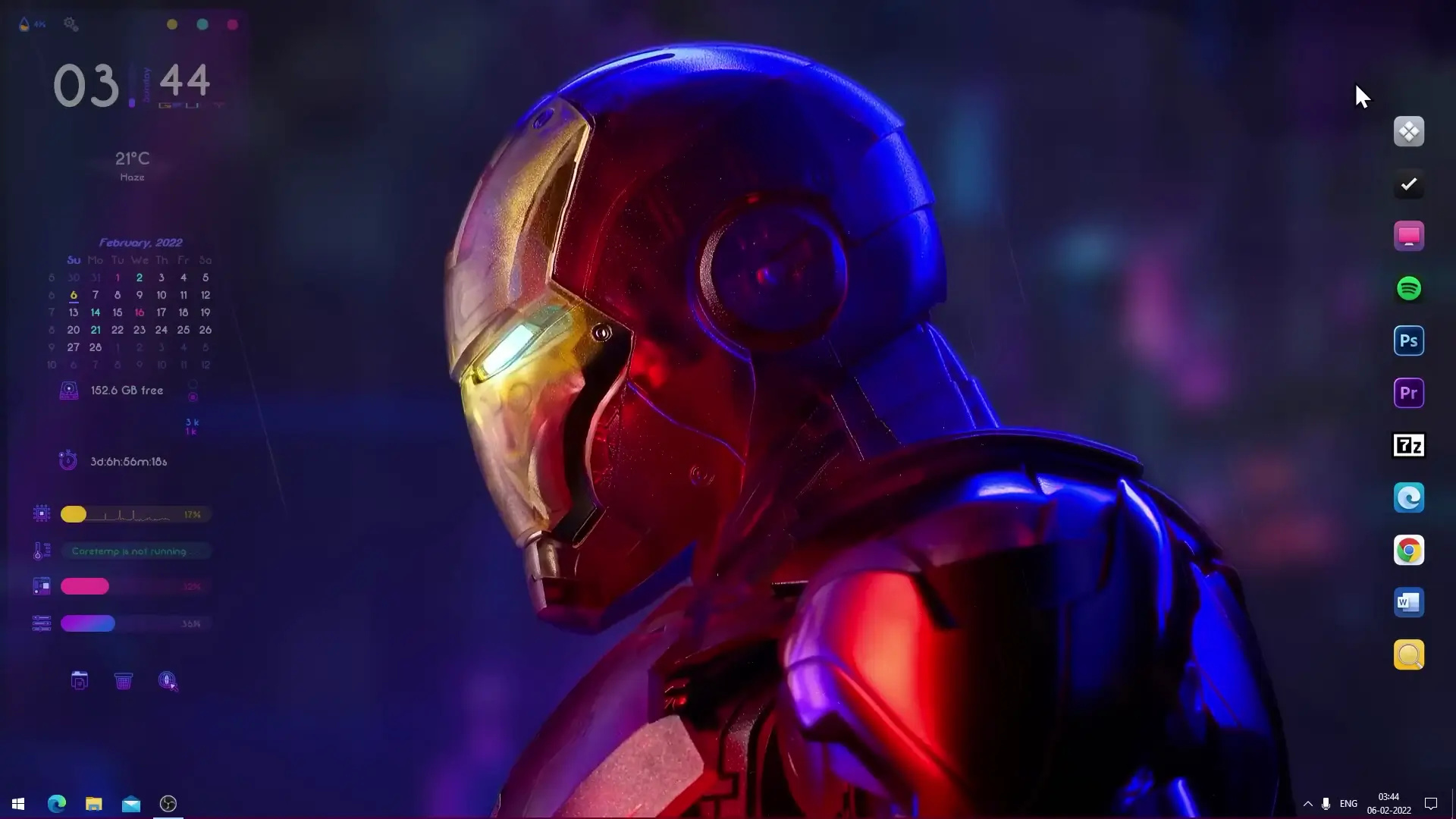
Many people enjoy customizing their computer desktop to make it look more interesting and personal. One of the most popular customization styles is an Iron Man themed desktop setup. With the right tools, you can turn a simple Windows desktop into a dynamic interface featuring live wallpaper, futuristic widgets, and a stylish dock.
This guide explains how to install an Iron Man live wallpaper theme using a few free desktop customization tools.
What You Need Before Starting
Before installing the theme, you need to download a few applications and files. These tools help you add animated wallpaper, widgets, and a custom dock to your desktop.
✅ DOWNLOAD ✅
Each of these tools serves a different purpose. Lively Wallpaper runs animated wallpapers, Rainmeter displays widgets, and Winstep Nexus Dock creates a stylish app launcher similar to the macOS dock.
Step 1: Install Lively Wallpaper
The first step is installing the live wallpaper software.
- Open the Microsoft Store on your Windows computer.
- Search for Lively Wallpaper.
- Download and install the application.
After installation, open the program. Lively Wallpaper allows you to run animated wallpapers without slowing down your computer.
Next, download the Iron Man Theme ZIP file that contains the wallpaper and icon files used in the setup.
Once downloaded, extract the ZIP file to access its contents.
Step 2: Apply the Iron Man Live Wallpaper
After extracting the theme files, you can apply the wallpaper.
- Open Lively Wallpaper.
- Choose the option to add a new wallpaper.
- Select the Iron Man wallpaper file from the extracted theme folder.
Once applied, your desktop background will change to the animated Iron Man theme.
This creates the visual base for the entire desktop setup.
Step 3: Move the Dock Icons Folder
The theme also includes a folder called dock_icons, which contains icons used by the desktop dock.
Follow these steps:
- Copy the dock_icons folder.
- Paste it into Local Disk (C:).
The path should look like this:
C:\dock_icons
This folder will later be used by Winstep Nexus Dock to restore the dock layout.
Step 4: Install and Configure Winstep Nexus Dock
Now install the dock application.
- Download and install Winstep Nexus Dock.
- Launch the program.
- Open Nexus Dock Settings.
- Go to Advanced.
- Click Restore.
A file selection window will appear.
Navigate to:
C:\dock_icons
Select the file wsbackup.wbk.
After restoring this file, the dock icons will automatically update to match the theme style.
You will now see a modern dock interface on your desktop with themed icons.
Step 5: Install Rainmeter and the Gruvy Skin
Rainmeter allows you to add widgets such as system information panels or futuristic UI elements.
Steps to follow:
- Install Rainmeter on your computer.
- After installation, open Rainmeter and unload any default skins.
- Install the Gruvy Rainmeter Skin.
- Load the skins included in the package.
These widgets complete the Iron Man–style interface by adding visual panels and system displays.
Final Result
After completing all the steps, your Windows desktop will have:
- Animated Iron Man live wallpaper
- A custom dock with themed icons
- Stylish Rainmeter widgets
Together, these elements create a modern desktop layout that looks visually impressive while still being practical for everyday use.
Tips for Better Performance
If your system feels slow after installing the theme, try these tips:
- Close unnecessary background apps
- Lower animation settings in Lively Wallpaper
- Disable unused Rainmeter widgets
This helps maintain smooth performance while enjoying the custom desktop design.