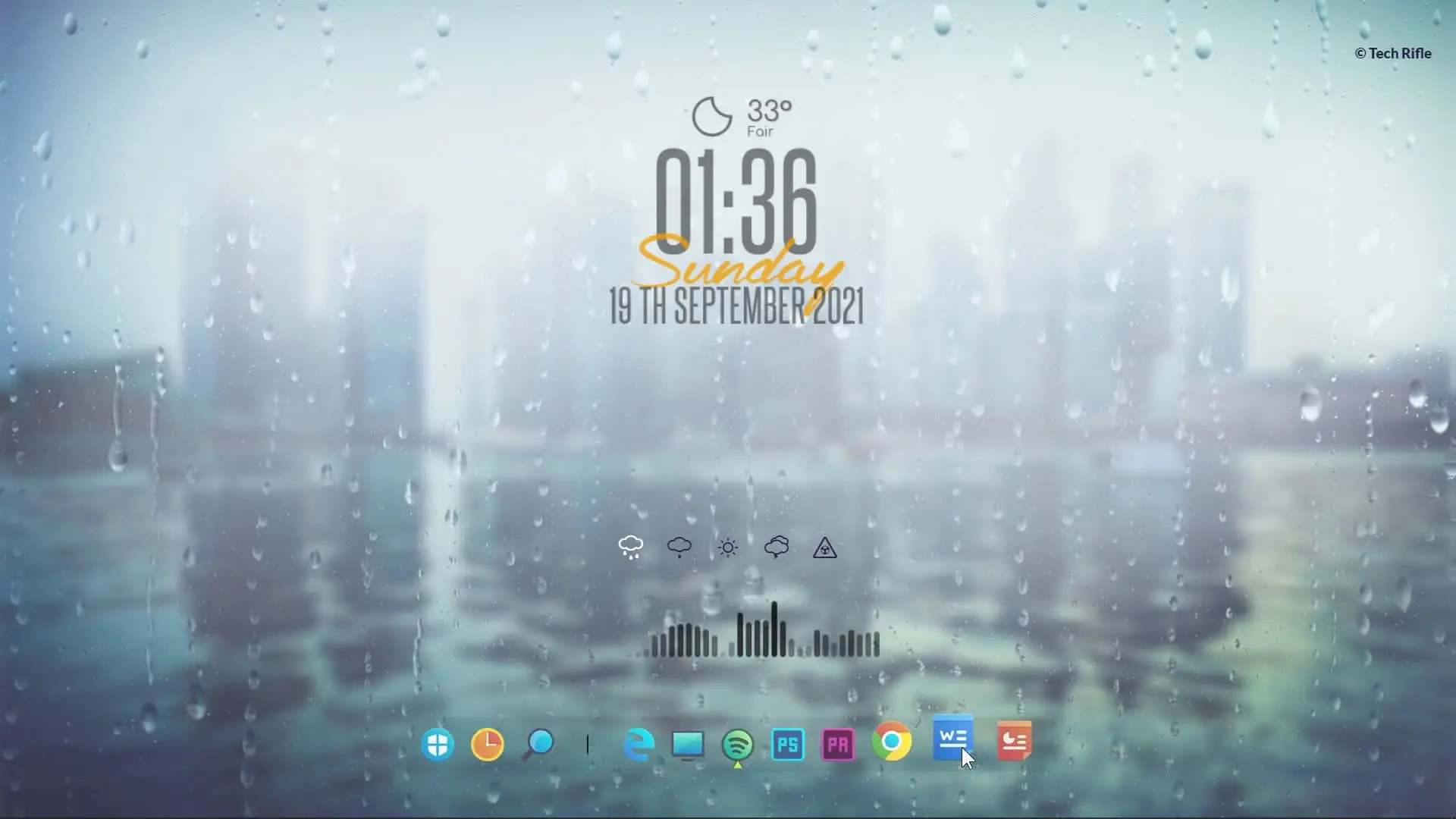
Customizing your desktop is one of the easiest ways to make your computer feel more personal and visually appealing. Many people spend hours on their computers every day, so having a clean, stylish desktop can improve the overall experience. In this guide, based on the “How to Make Desktop Look Awesome Part 3” tutorial by Tech Rifle, you will learn how to transform your desktop using a few simple tools and themes.
Why Customize Your Desktop?
A default desktop often looks plain and boring. Customization allows you to add dynamic wallpapers, stylish docks, widgets, and visual themes that make your screen look modern and organized.
Some benefits of customizing your desktop include:
- A visually attractive workspace
- Quick access to frequently used applications
- Better organization of desktop icons
- A unique setup that reflects your style
With the help of a few free tools, you can easily create a desktop that looks professional and modern.
Tools You Need
To create this customized desktop setup, you will need to download several tools and themes. These tools work together to change how your desktop looks and behaves.
Required downloads:
- Lively Wallpaper
- Theme Zip File
- Winstep Nexus Dock
- Rainmeter
- Small Clean Weather
- Kantas Akra
- La Compagnie des Ombres
Once you download these files, you can begin setting up your customized desktop.
Step 1: Install Lively Wallpaper
Lively Wallpaper allows you to set animated or dynamic wallpapers on your desktop. Unlike static backgrounds, animated wallpapers add motion and life to your screen.
After installing Lively Wallpaper:
- Open the application.
- Import the wallpaper from the theme zip file.
- Apply the wallpaper as your desktop background.
This will instantly change the look of your desktop and make it more visually appealing.
Step 2: Add a Dock Using Winstep Nexus Dock
A dock provides quick access to your favorite apps and gives your desktop a modern look similar to macOS.
To set it up:
- Install Winstep Nexus Dock.
- Launch the application.
- Add your frequently used apps to the dock.
- Position the dock at the bottom or side of your screen.
You can also customize the dock style, icon size, and animation effects.
Step 3: Install Rainmeter for Widgets
Rainmeter is a powerful desktop customization tool that allows you to add widgets such as weather, system monitoring, clocks, and more.
After installing Rainmeter:
- Import the Small Clean Weather widget.
- Add the Kantas Akra skin.
- Install La Compagnie des Ombres for additional visual elements.
These widgets will appear directly on your desktop and provide useful information while improving the overall design.
Step 4: Apply the Theme
The theme zip file contains visual elements that complete the desktop setup. Extract the file and follow the instructions provided in the package.
This theme will adjust colors, layout, and design elements so that everything matches the wallpaper, dock, and widgets.
Final Result
After completing all the steps, your desktop will look much cleaner, modern, and visually impressive. Animated wallpapers, a stylish dock, and useful widgets will transform your desktop from a simple workspace into something unique and enjoyable to use.
Even better, these tools are lightweight and can run smoothly on most Windows systems without affecting performance.