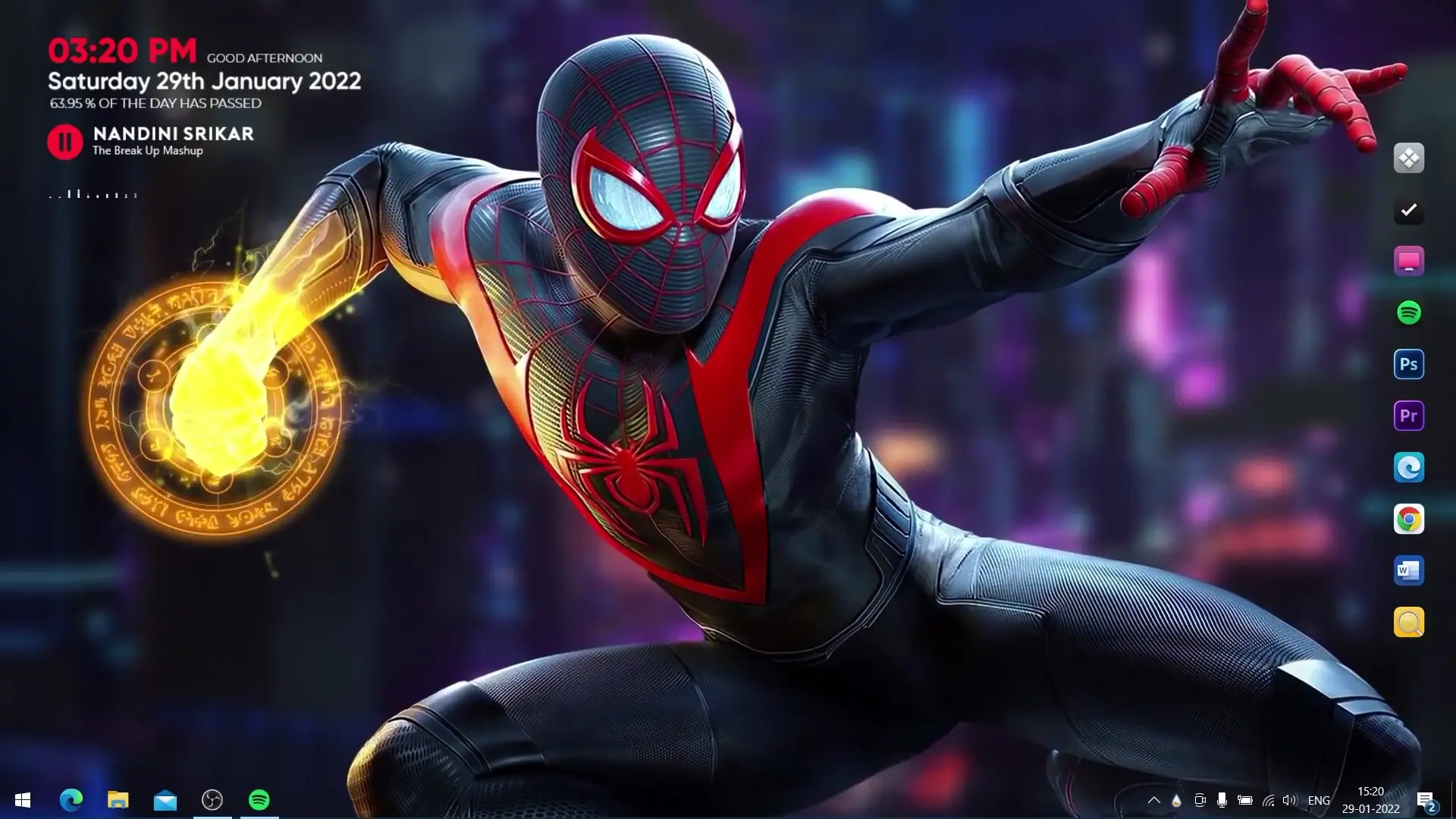
If you are a Spider-Man fan and want your computer to look more exciting, a Spider-Man live wallpaper theme can give your desktop a completely new appearance. Instead of using a normal static wallpaper, this setup adds motion, themed icons, and a stylish dock that makes the desktop feel modern and dynamic.
This Spider-Man desktop theme works on Windows computers and can be installed using a few free tools. The setup includes a live animated wallpaper, a custom dock with Spider-Man themed icons, and widgets that enhance the overall look of your desktop. With the help of tools like Lively Wallpaper, Winstep Nexus Dock, and Rainmeter, you can easily transform a plain desktop into a Spider-Man inspired workspace.
In this guide, you will learn how to download and install the Spider-Man live wallpaper theme step by step.
What You Need Before Installing the Theme
Before starting the installation process, you will need to download a few required files and applications. These tools help apply the wallpaper, icons, and widgets correctly.
Required files and software:
✅ DOWNLOAD ✅
Once you download these files, you are ready to begin installing the Spider-Man desktop theme.
Step 1: Install Lively Wallpaper
The first step is installing Lively Wallpaper, which allows you to use animated wallpapers on Windows.
- Open the Microsoft Store on your computer.
- Search for Lively Wallpaper.
- Download and install the application.
- Launch Lively Wallpaper after installation.
Lively Wallpaper is responsible for running the Spider-Man live wallpaper in the background without slowing down your system.
Step 2: Download and Extract the Theme ZIP File
Next, download the Spider-Man Theme ZIP file provided with the setup.
- Download the ZIP file.
- Extract it using any extraction software.
- Inside the folder you will see:
- Theme files
- dock_icons folder
These files are required for the wallpaper and dock customization.
Step 3: Apply the Live Wallpaper Theme
Now you can activate the live wallpaper.
- Open Lively Wallpaper.
- Import or add the theme file from the extracted folder.
- Select the Spider-Man theme.
- Apply it as your desktop background.
After this step, your desktop will display the animated Spider-Man wallpaper.
Step 4: Move the Dock Icons Folder
To properly set up the themed dock icons, you need to move the icons folder to the correct location.
- Copy the dock_icons folder.
- Move it to the following directory:
C:\dock_icons
This folder contains the backup configuration needed for the dock layout.
Step 5: Install and Configure Winstep Nexus Dock
The next step is setting up the dock.
- Install Winstep Nexus Dock.
- Launch the application.
- Open Nexus Dock Settings.
- Go to Advanced → Restore.
- Navigate to:
C:\dock_icons
- Select the file wsbackup.wbk.
Once restored, the dock icons will automatically change to the Spider-Man themed layout.
Step 6: Install Rainmeter Widgets
Rainmeter is used for additional desktop widgets.
- Install Rainmeter.
- After installing, unload any default skins.
- Install the Rainmeter Skin included with the theme.
- Activate the skin.
Rainmeter will add extra visual elements that match the Spider-Man theme.
Final Result
After completing all the steps, your desktop will feature:
- Animated Spider-Man live wallpaper
- Custom Spider-Man dock icons
- Stylish widgets using Rainmeter
- A modern themed desktop layout
This setup gives your computer a unique Spider-Man inspired look while keeping everything functional and organized.