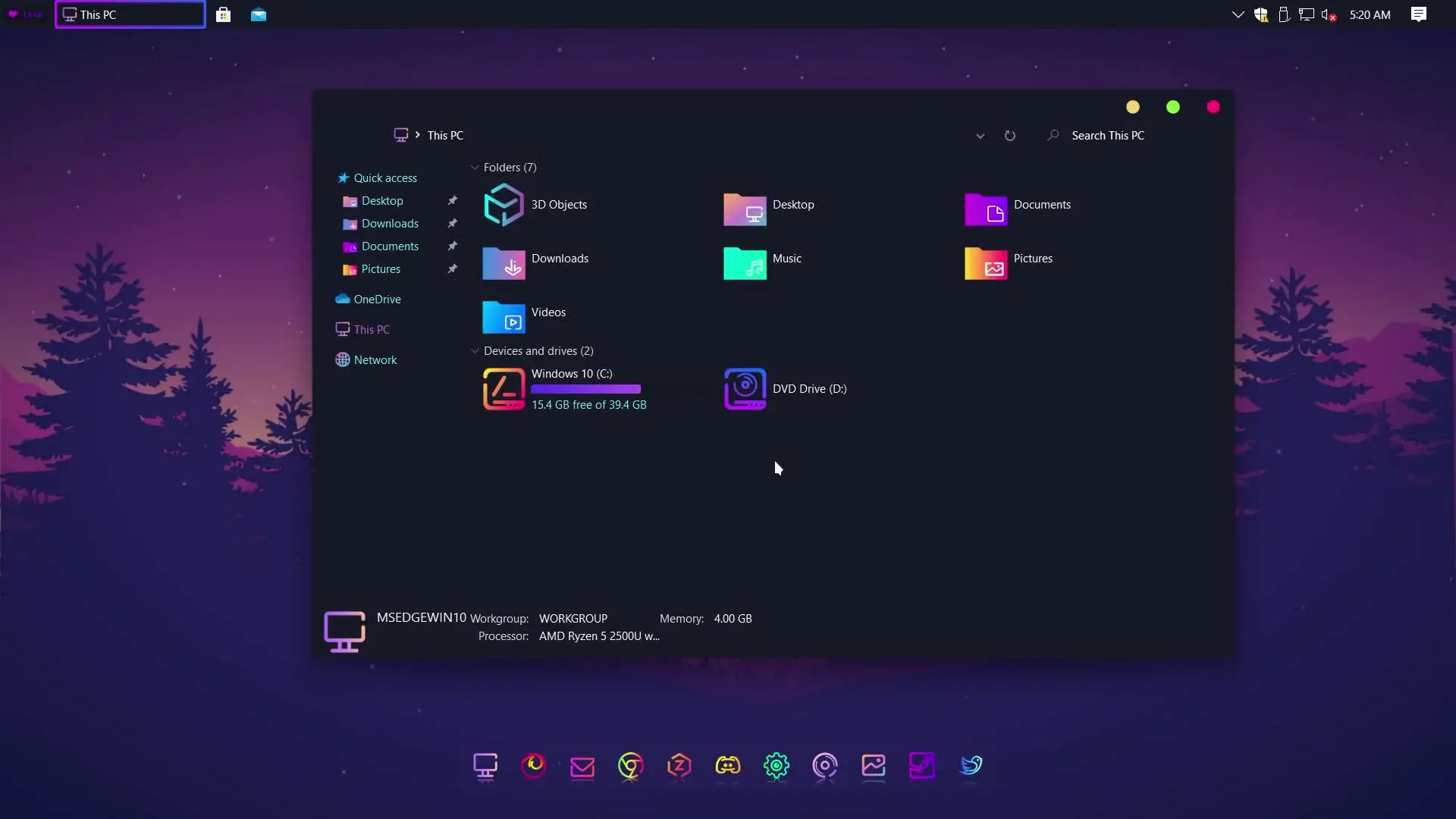
Many Windows 10 users get bored with the default look of their desktop. The standard theme, icons, and layout have remained almost the same for years. The good news is that you can completely change the appearance of your system by installing custom themes, icon packs, and a desktop dock. With the right tools, your Windows 10 desktop can look modern, clean, and much more attractive.
In this guide, you will learn how to transform your Windows 10 interface using several customization tools. By following the steps carefully, you can turn your old Windows 10 layout into a stylish desktop setup similar to the one shown in the tutorial.
Files You Need to Download
Before starting, you will need to download a few tools and themes. These files will help you install custom themes, change icons, add a dock, and modify the overall look of Windows.
Here are the required downloads:
- Secure UX Theme
- Paranoid Android Windows 10 Themes
- Sweet Paranoia Icon Theme
- Winstep Nexus Dock
- Winstep Nexus Dock Settings
- Old New Explorer
- StartIsBack
- paranoidOrbs
- Breeze Cursors for Windows
- Wallpaper
Each of these tools has a specific role in customizing the desktop. Some modify the Windows interface, while others improve icons, cursors, and the taskbar.
Important Step: Create a System Restore Point
Before installing any third-party theme, it is very important to create a System Restore Point. Custom themes require modifying certain Windows files, and if something goes wrong you should be able to restore your system.
To create a restore point:
- Open the Start menu and search for Create a restore point.
- Open System Protection.
- Click Create and give it a name.
- Wait until the restore point is created.
If you ever want to return to the original Windows 10 design, you can simply use this restore point.
Installing the Custom Windows Theme
The first step in changing the Windows appearance is installing the theme patcher. Tools like Secure UX Theme allow Windows to run third-party themes that are not supported by default.
After installing the theme patcher:
- Restart your computer.
- Extract the Paranoid Android Windows 10 Themes files.
- Copy the theme files into the Windows Themes folder.
- Open the Personalization settings and select the new theme.
Once applied, you will immediately notice changes in the window style, colors, and interface design.
Changing Icons and Cursors
The next step is installing the Sweet Paranoia Icon Theme. This pack replaces the default Windows icons with a more modern design.
After installing the icon pack, folders, system icons, and shortcuts will appear more stylish and consistent with the new theme.
You can also install Breeze Cursors for Windows to change the mouse pointer. This adds a cleaner and smoother cursor design compared to the default one.
Adding a Dock to Your Desktop
To make Windows look more like a modern desktop interface, you can install Winstep Nexus Dock. This software adds a dock similar to the one found on macOS.
After installing it:
- Launch the dock application.
- Import the Winstep Nexus Dock Settings file.
- Adjust the position and icon size.
The dock will give quick access to apps and also make the desktop look more organized.
Additional Customization Tools
Some extra tools can further improve the desktop experience.
Old New Explorer restores the classic Windows explorer look and removes unnecessary elements.
StartIsBack improves the start menu and taskbar behavior.
paranoidOrbs adds custom visual elements that match the Paranoid Android theme style.
Finally, apply the included wallpaper to complete the look of the desktop.
Final Result
After installing all the tools, your Windows 10 desktop will look completely different from the default layout. The new theme, icons, dock, and cursor create a modern and visually appealing interface.
If you follow each step from the tutorial and install the required files correctly, you can easily transform your Windows 10 system into a stylish and customized desktop setup. And since you created a restore point earlier, you can always go back to the original Windows theme whenever you want.