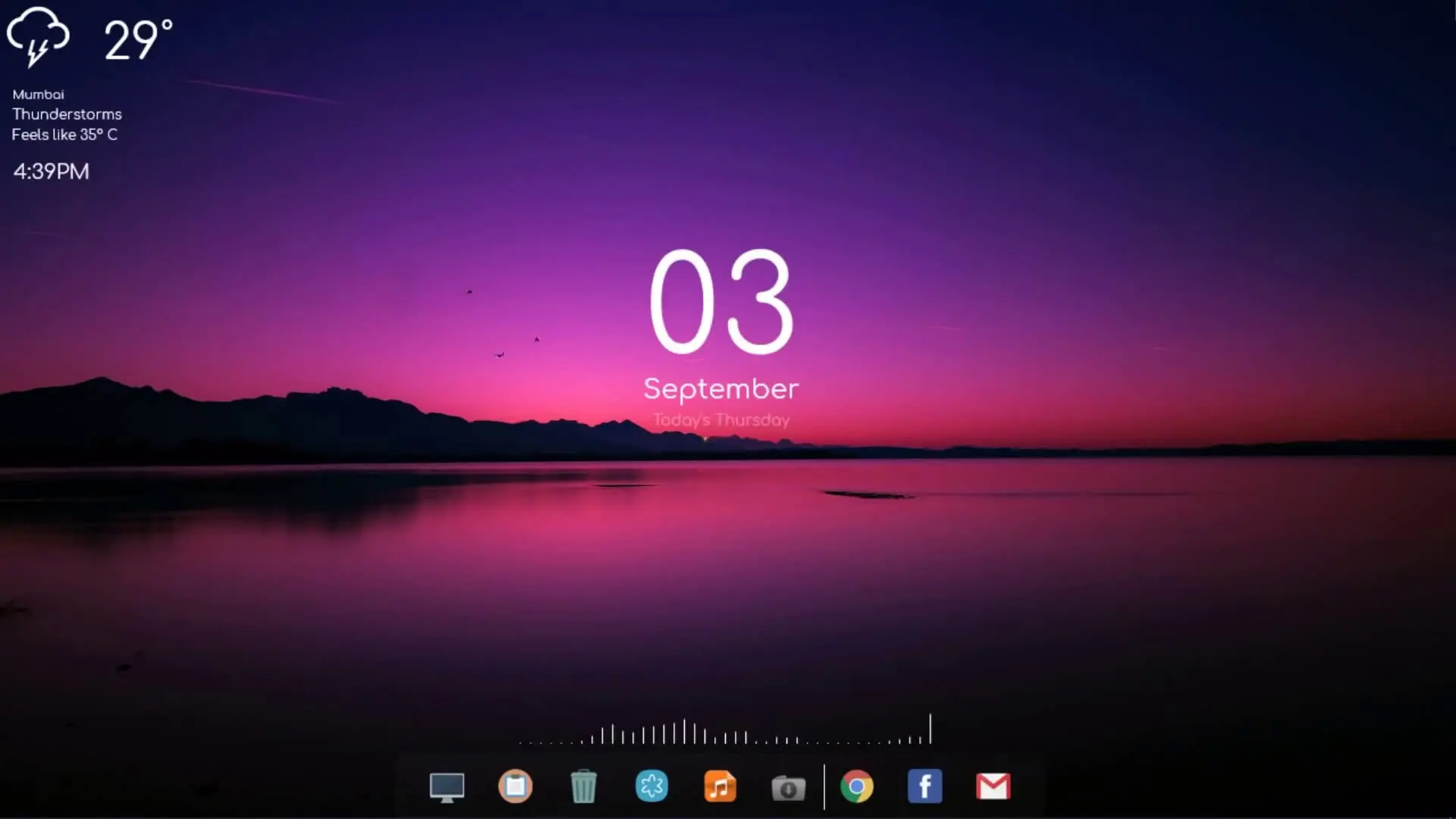
Customizing the Windows desktop is one of the easiest ways to make your computer feel fresh and visually appealing. Many users stick with the default Windows wallpaper and layout, but with a few tools you can completely transform your desktop. One popular method is using Rainmeter widgets, which allow you to add clocks, system information, and stylish visual elements directly on your desktop.
In this tutorial, we will explain how you can change your Windows wallpaper and combine it with Rainmeter widgets to create a more dynamic and modern desktop setup.
What is Rainmeter?
Rainmeter is a free desktop customization software for Windows. It allows users to add widgets, also known as skins, directly onto their desktop. These skins can display useful information such as time, date, weather, CPU usage, music players, and more.
The best part about Rainmeter is that it is highly customizable. Users can change colors, layouts, widget sizes, and even combine multiple skins to create a unique desktop look. Because of this flexibility, Rainmeter has become very popular among people who enjoy personalizing their computers.
Download the Required Files
To create the desktop setup shown in the tutorial, you need to download a few important files. These files include the Rainmeter software itself and a theme package that contains the required widgets and configuration files.
The downloads usually include:
The theme ZIP file is important because it contains all the Rainmeter widgets used in the setup. Without this file, you will not be able to recreate the same desktop appearance.
Installing Rainmeter
First, download and install Rainmeter on your Windows computer. The installation process is simple and similar to installing any other Windows software.
After installing Rainmeter, the program will start running in the background. You will also see a few default widgets appear on your desktop. These default widgets can later be removed or replaced with custom ones.
Once Rainmeter is installed, you are ready to add the custom theme files.
Extract and Move the Theme Files
After downloading the theme ZIP file, extract it using any file extraction tool such as WinRAR or the built-in Windows extractor.
Inside the extracted folder, you will find Rainmeter skin folders. These folders need to be moved to the correct Rainmeter directory.
Follow this path:
Documents → Rainmeter → Skins
Copy the folders from the downloaded theme package and paste them inside the Skins folder. This step is very important because Rainmeter only detects skins that are placed in this directory.
If the folders are not placed in the correct location, the widgets may not work properly.
Activating the Rainmeter Widgets
Once the files are placed in the Skins folder, open the Rainmeter application. From the Rainmeter control panel, you will see the list of available skins that were added.
You can activate the widgets by selecting them and clicking Load. After loading the skins, they will appear on your desktop.
You can drag the widgets anywhere on your screen to match the layout shown in the tutorial. Adjusting the position of each widget helps create a clean and balanced desktop design.
Fixing the Widget Color Issue
Some users may notice that the widget color does not change to white after activating it. This usually happens when the folders are not copied to the correct location.
If you experience this problem, check whether the files are inside the following folder:
Documents → Rainmeter → Skins
If the files were placed somewhere else, move them to the correct folder and reload the widgets from the Rainmeter panel. Following the tutorial steps carefully will fix the issue.
Final Result
After completing all the steps, your Windows desktop will look much more stylish and organized. With a combination of a high-quality wallpaper and Rainmeter widgets, your desktop will display useful information while also looking visually impressive.
The setup is simple and does not require advanced technical knowledge. By following the tutorial step by step, anyone can create a cool and dynamic desktop environment.
If you enjoy customizing your PC, Rainmeter offers endless possibilities to experiment with different widgets, themes, and layouts.