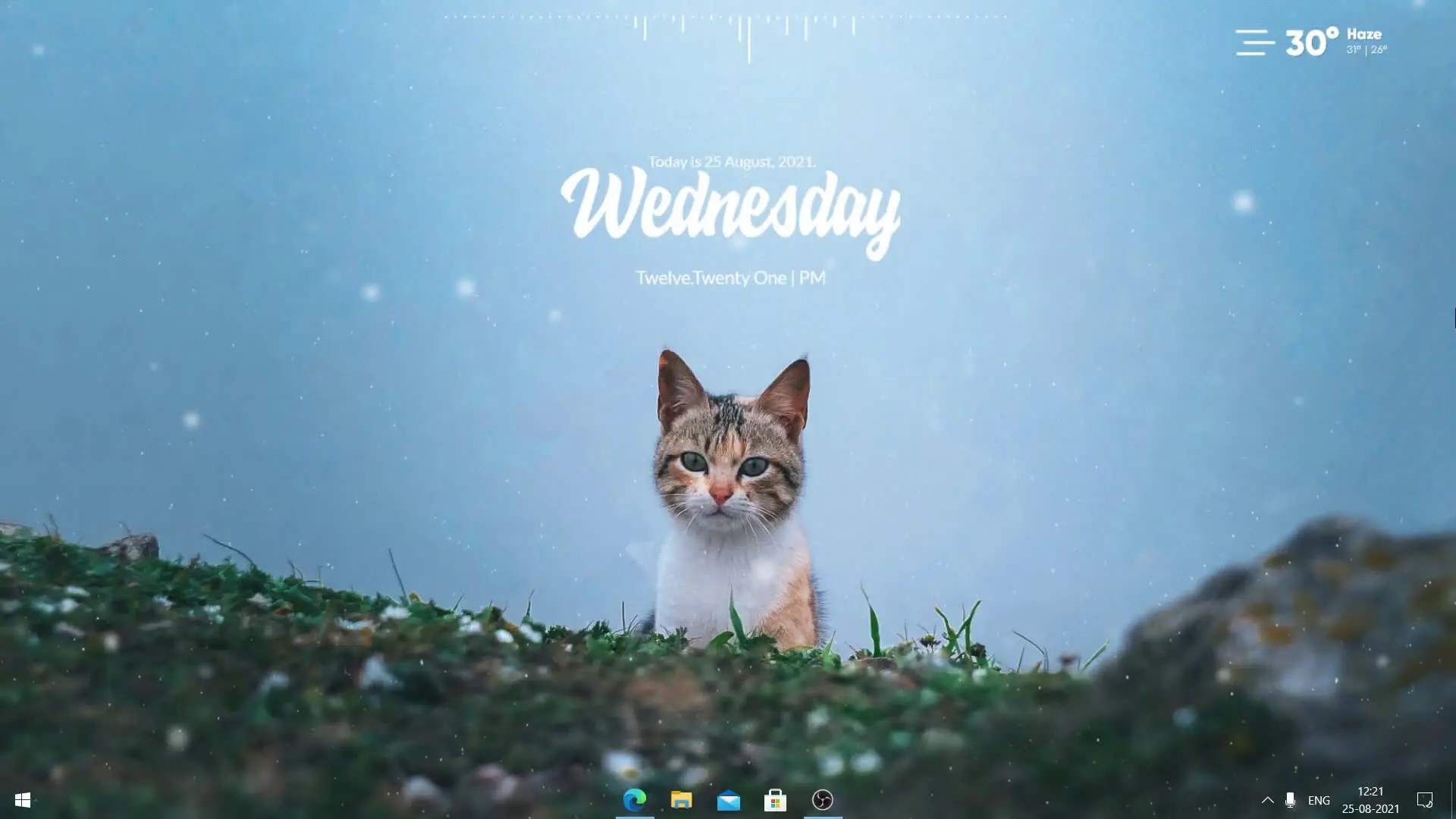
Customizing your desktop is a simple way to make your computer feel fresh and visually appealing. If you are using Windows 10, you can easily transform the default interface into something much more modern and stylish. In this guide, we will walk through a setup inspired by the third part of the “How to Make Your Desktop Look Cool” series. With the help of a few tools and themes, you can give your desktop a completely new look.
This customization works on both desktops and laptops. The only requirement is that your system should be running the latest version of Windows 10.
What You Need for This Setup
Before starting the customization process, you will need to download a few tools and resources. These programs help change the appearance of widgets, taskbar, icons, and wallpaper.
Here are the main tools used in this setup:
Each of these plays a different role in transforming the look of your desktop.
Step 1: Install Rainmeter
Rainmeter is the main tool used for desktop customization. It allows you to add widgets, system monitors, clocks, and visual elements directly on your desktop.
After downloading Rainmeter, install it on your system and launch the application. Once installed, it will allow you to load different skins and themes that control how your desktop widgets appear.
Rainmeter is widely used in Windows customization because it is lightweight and supports many creative designs.
Step 2: Apply the IcyStorm V2 Skin
The IcyStorm V2 skin is used to add stylish widgets and UI elements to your desktop. These widgets can show system information such as CPU usage, RAM usage, and time.
Once Rainmeter is installed, import the IcyStorm V2 skin into Rainmeter and activate it. The widgets will appear on your desktop and can be moved anywhere you like.
You can adjust the layout so the widgets match the overall theme of your desktop.
Step 3: Set the Snow Cat Wallpaper
Wallpaper plays a big role in the final appearance of your desktop. In this setup, the Snow Cat wallpaper gives a clean and aesthetic background that matches the overall theme.
Simply download the wallpaper and set it as your desktop background from Windows settings. A good wallpaper helps the widgets stand out and makes the entire setup look more balanced.
Step 4: Add the Weather Widget
The Small Clean Weather widget is used to show live weather information on your desktop. It provides details like temperature and weather conditions in a simple and minimal style.
After installing the widget through Rainmeter, you can configure it with your location so it displays the correct weather data.
This small addition makes the desktop both useful and visually appealing.
Step 5: Customize Icons with Appico
Default Windows icons often look outdated. Appico allows you to add modern-looking icons to your desktop.
Once installed, you can replace standard application icons with cleaner and more stylish alternatives. This small change makes a big difference in how your desktop looks.
You can organize the icons neatly so they match the design of your Rainmeter widgets.
Step 6: Center the Taskbar with TaskbarX
The final step is customizing the taskbar. TaskbarX lets you move the taskbar icons to the center, similar to the layout seen in Windows 11.
After installing TaskbarX, your taskbar icons will automatically shift to the middle. This gives your desktop a cleaner and more modern appearance.
It also helps balance the entire desktop layout when combined with widgets and wallpapers.
Final Result
After completing all these steps, your Windows 10 desktop will look completely different from the default setup. With Rainmeter widgets, a clean wallpaper, improved icons, and a centered taskbar, the interface becomes much more attractive and functional.
The best part is that you can always adjust the layout and add new skins to create your own style. Desktop customization is all about making your workspace look the way you want.