
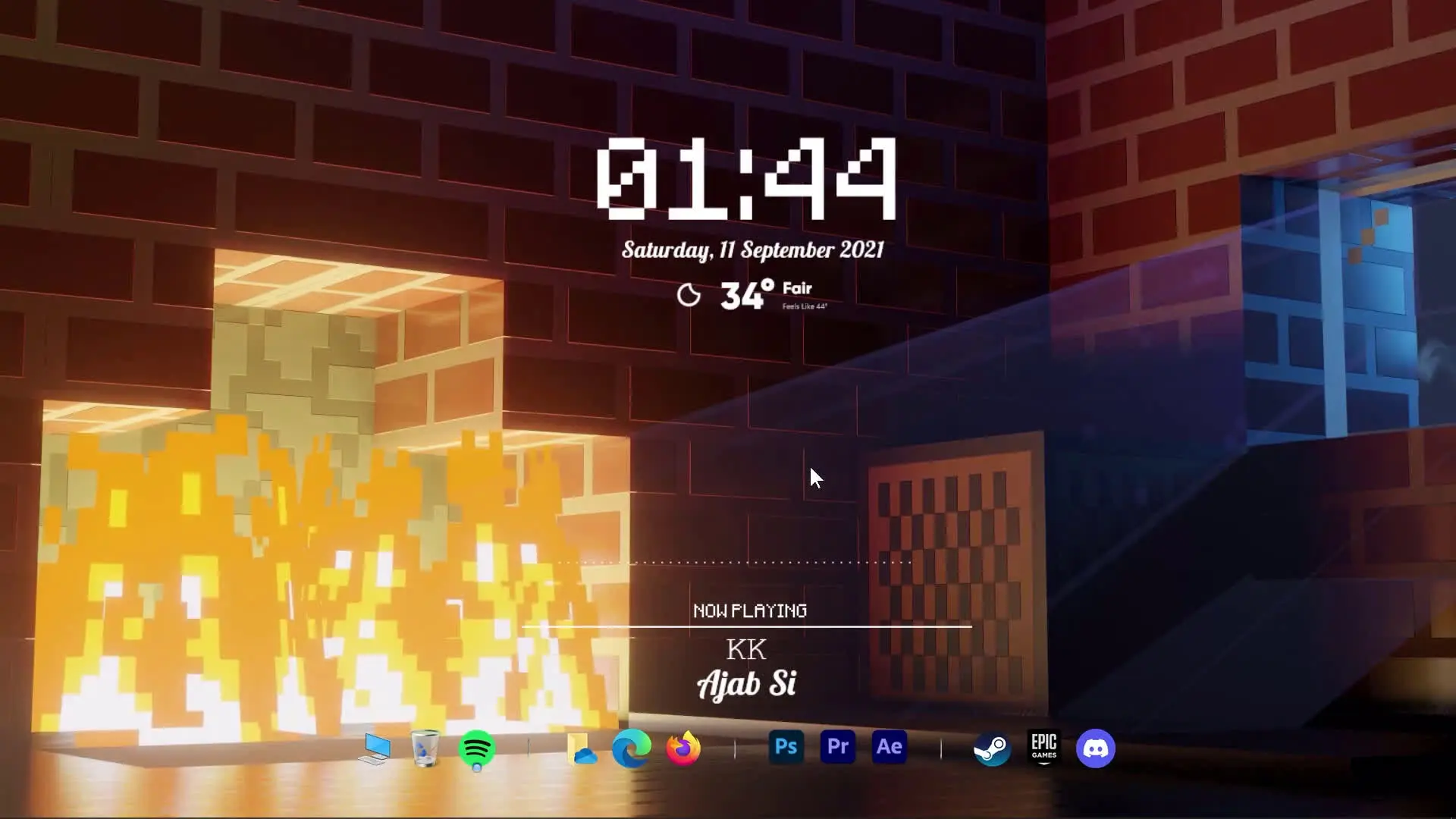
Many people enjoy customizing their desktop to match their favorite games. If you are a Minecraft fan, you can transform your Windows desktop into a Minecraft-style animated environment. With the help of a few customization tools, it is possible to create a desktop that includes Minecraft fonts, animated wallpapers, widgets, and a stylish dock.
In this guide, you will learn how to install a cool animated Minecraft theme on Windows 10 and Windows 11. The setup is simple, and by following the steps carefully you can achieve the same desktop look shown in the tutorial video.
Tools Required for the Minecraft Desktop Theme
Before starting the customization process, you need to download a few tools and files. Each one plays an important role in creating the final animated desktop theme.
1. Lively Wallpaper
Lively Wallpaper is used to set animated wallpapers on your desktop. It allows videos or interactive backgrounds to run smoothly without slowing down your system.
2. Minecraft Theme File
This file contains the main wallpaper or animation used to create the Minecraft environment on the desktop.
3. Rainmeter
Rainmeter is one of the most popular desktop customization tools for Windows. It allows you to add widgets such as clocks, weather information, and visualizers.
4. Winstep Nexus Dock
Winstep Nexus Dock creates a stylish dock at the bottom of the screen where you can place your apps and shortcuts.
5. Fonts
Two fonts are used in this theme:
- Lobster Font
- Minecraft Font
These fonts help match the overall style of the Minecraft theme.
6. Rainmeter Widgets
To complete the look, several Rainmeter skins are used:
- Elegant Clock
- Small Clean Weather
- Clear Text Widget
- Lano Visualizer
✅ DOWNLOAD ✅
- Lobster Font
- Minecraft Font Download
- Lively Wallpaper
- Minecraft Theme File
- Winstep Nexus Dock
- Rainmeter
- Elegant Clock
- Small Clean Weather
- Clear Text Widget
- Lano Visualizer
These widgets display useful information and improve the visual appearance of the desktop.
Step 1: Install Lively Wallpaper
First, install Lively Wallpaper on your computer. Once installed, open the application and import the Minecraft animated wallpaper or theme file.
After importing the file, set it as your desktop wallpaper. This will give your desktop a dynamic Minecraft-style animated background.
Step 2: Install Rainmeter
Next, download and install Rainmeter. After installation, you can start adding skins or widgets to your desktop.
Import the following Rainmeter skins:
- Elegant Clock for time display
- Small Clean Weather for weather information
- Clear Text Widget for system information
- Lano Visualizer for audio visual effects
You can move and resize these widgets anywhere on your desktop to match the layout shown in the tutorial.
Step 3: Install Winstep Nexus Dock
To create a modern dock like macOS, install Winstep Nexus Dock. After installation, customize the dock by adding your frequently used apps.
Position the dock at the bottom of the screen and adjust the icon style so that it matches the Minecraft desktop theme.
Step 4: Apply Minecraft Fonts
Download and install the Lobster Font and Minecraft Font. After installing them, you can apply them to Rainmeter widgets or other elements to give the desktop a consistent Minecraft-inspired look.
These fonts help make the customization feel more authentic.
Step 5: Final Desktop Customization
Once all tools are installed, adjust the widget positions, dock layout, and wallpaper settings until your desktop looks similar to the one shown in the tutorial.
You can experiment with different placements for the widgets to create a clean and balanced layout.
Final Result
Creating a Minecraft animated desktop theme on Windows 10 or Windows 11 is easier than it may seem. By combining tools like Lively Wallpaper, Rainmeter, and Winstep Nexus Dock, you can transform your desktop into a stylish and animated Minecraft environment.
With the right widgets, fonts, and wallpapers, your desktop will look unique and visually appealing. Simply follow the steps in the tutorial, install the required tools, and enjoy a customized Minecraft-themed desktop experience.










Hello ty for the wallpaper