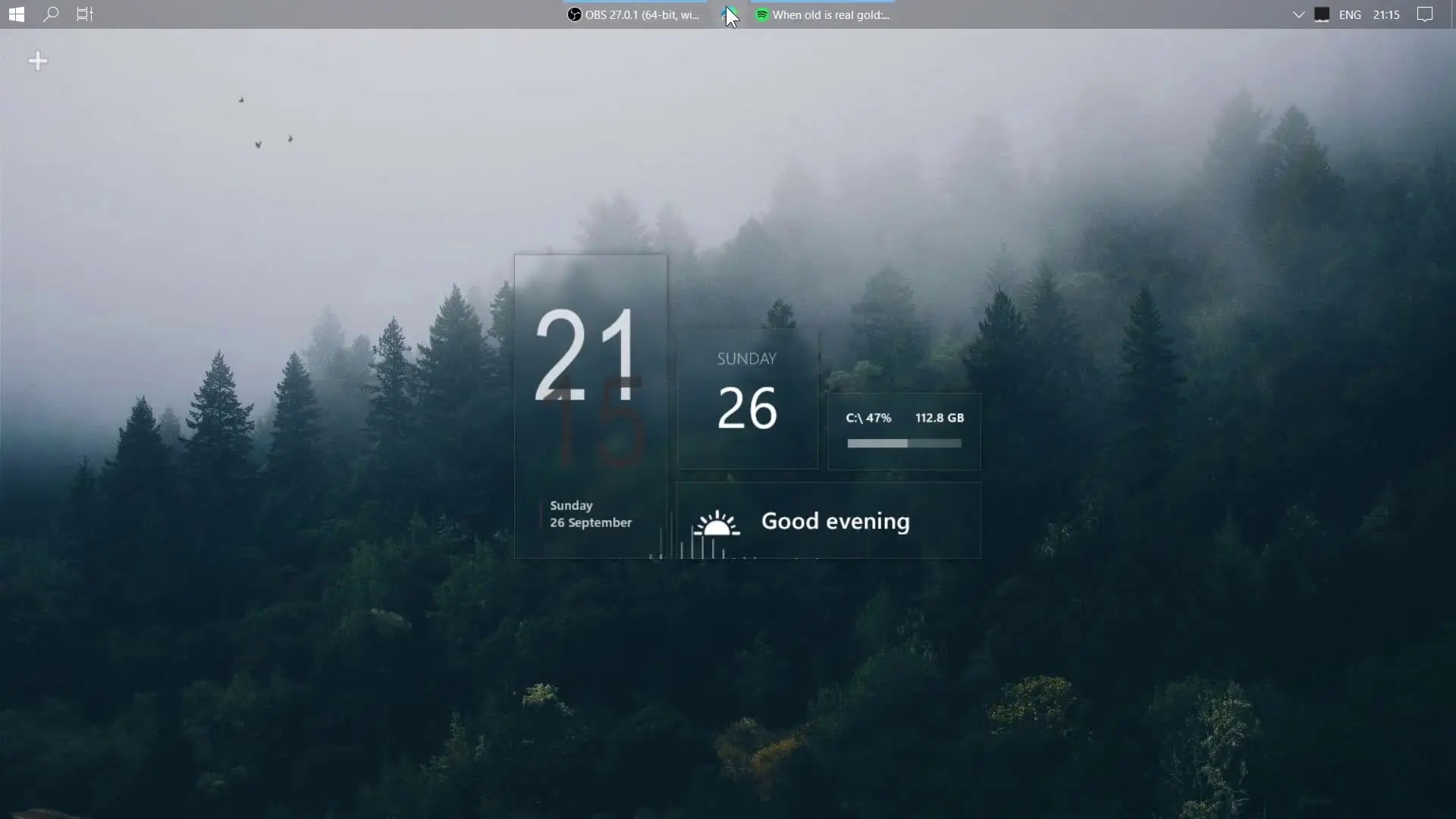
Customizing your desktop is one of the easiest ways to make your computer feel more personal and visually appealing. Instead of the plain default Windows look, you can transform your desktop into something modern, stylish, and functional. In this guide based on the video from the Tech Rifle channel, you will learn how to create a cool desktop setup using a few simple tools. If you carefully follow each step, you can achieve the same clean and attractive desktop style shown in the tutorial. 💻✨
Tools You Need
Before starting the customization process, you need to download a few tools and files. These programs help change the desktop layout, add widgets, and improve the overall appearance.
Required Downloads:
These tools work together to modify different parts of the Windows interface, such as widgets, taskbar position, and visual effects.
Step 1: Install Rainmeter
Rainmeter is the main software used for desktop customization. It allows you to add widgets on your desktop like system stats, clocks, music visualizers, weather information, and many other elements.
First, download and install Rainmeter on your computer. After installation, you will see some default skins on your desktop. These are basic widgets included with Rainmeter.
Rainmeter acts as the base system for all other customization features, so make sure it is installed properly before moving to the next steps.
Step 2: Add Omnimo 10 Skin Pack
Once Rainmeter is installed, the next step is installing Omnimo 10. This is a popular skin pack that adds a modern dashboard-style interface to your desktop.
Omnimo gives you many useful widgets such as:
- System monitoring panels
- Time and date widgets
- App launchers
- Media controls
- Weather information
After installing Omnimo, you can place widgets anywhere on the screen and adjust their size or layout according to your preference.
Step 3: Install Fountain of Colors Visualizer
If you enjoy listening to music while working, the Fountain of Colors visualizer will make your desktop look even better. 🎵
This Rainmeter skin creates colorful animated bars that react to the music playing on your system. The animation moves with the beat, making the desktop feel more dynamic.
After installing it, you can change:
- Color styles
- Visualizer shape
- Animation speed
- Position on screen
This feature is mainly used for aesthetic purposes, but it also gives your setup a unique look.
Step 4: Apply Custom Theme Files
The theme zip files included in the download help match the desktop background and widget design so everything looks consistent.
After extracting the theme files, apply the wallpaper and any additional theme settings provided. A good wallpaper plays a big role in making the entire setup look clean.
Choose a wallpaper that matches the color of the widgets and visualizer for the best result.
Step 5: Center the Taskbar Using TaskbarX
To complete the look, install TaskbarX. This small program moves the Windows taskbar icons to the center of the screen.
Centered icons give your desktop a modern appearance similar to newer operating systems.
TaskbarX also provides animation when opening apps and allows you to control:
- Icon alignment
- Animation style
- Taskbar transparency
After adjusting these settings, your desktop layout will look much more organized.
Removing the Customization
One helpful part of the tutorial is that it also explains how to remove everything if you want to go back to the normal Windows layout.
You can simply:
- Disable Rainmeter skins
- Uninstall Rainmeter
- Remove TaskbarX
- Restore the default wallpaper
This ensures that the customization process is completely reversible.
Final Result
After completing all these steps, your desktop will look modern, clean, and visually impressive. The combination of Rainmeter widgets, Omnimo panels, music visualizer effects, and a centered taskbar creates a stylish setup that stands out from the default Windows interface. 🚀
If this is your first time trying desktop customization, just follow the steps shown in the tutorial carefully and you should be able to recreate the same setup without difficulty.