
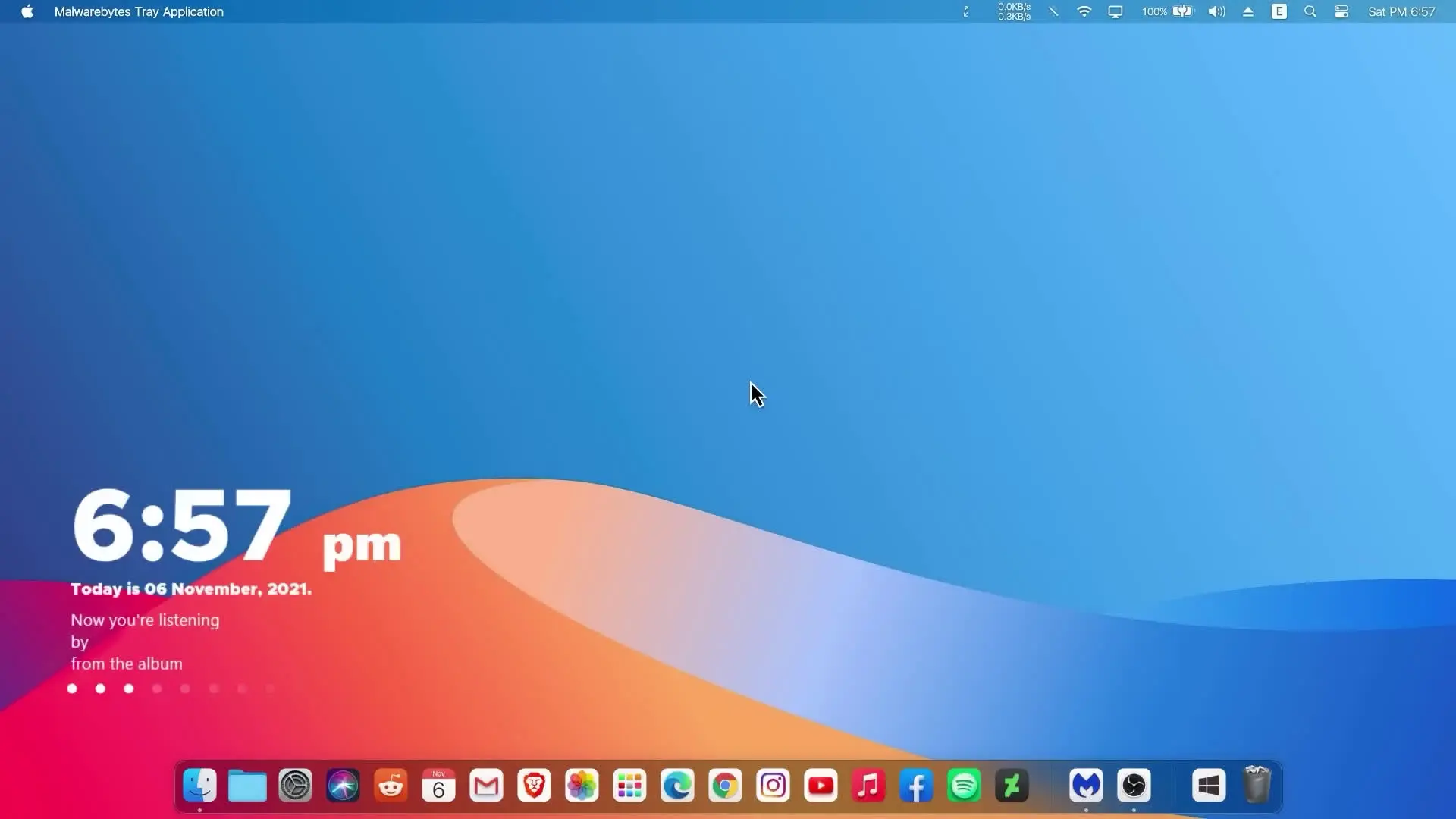
Many people like the clean and minimal design of macOS. The dock, smooth interface, and organized layout make it attractive for daily use. The problem is that macOS is officially available only for Apple computers. If you are using Windows 11, you cannot install macOS directly on your PC.
The good news is that you can customize Windows 11 to look very similar to macOS. With the help of a few tools and themes, you can transform the appearance of your desktop without changing your operating system.
In this guide, you will learn how to give your Windows 11 computer a macOS-style interface.
Why People Like the macOS Interface
macOS is popular because of its simple and modern design. Many users prefer the dock at the bottom of the screen, the smooth window effects, and the overall visual style.
Windows 11 is powerful and flexible, but some users prefer the macOS look. Instead of switching computers, customization tools allow you to enjoy a similar visual experience while still using Windows.
Important Note Before You Start
Before applying customization tools, it is recommended to create a system restore point. This allows you to revert changes if something does not work as expected.
Also make sure you download tools only from trusted sources.
Tools Required for macOS-Style Customization
✅ DOWNLOAD ✅
- Secure UX Theme
- BIB3 for Windows
- LIT3 for Windows
- My ZIP File
- StartAllBack
- My Dock Finder (Now PAID & Available on Steam)
- Rainmeter
- Bluesh
To transform Windows 11 into a macOS-like interface, several tools can be used. Each tool changes a specific part of the system interface.
Secure UX Theme
Secure UX Theme allows Windows to use custom themes. By default, Windows restricts third-party themes, and this tool helps enable them safely.
BIB3 for Windows
BIB3 is a visual theme designed to replicate the look of macOS. It changes window colors, borders, and general styling to match the macOS aesthetic.
LIT3 for Windows
LIT3 is another theme variation that offers a slightly different visual style. Some users prefer this version because of its cleaner appearance.
StartAllBack
StartAllBack improves the Windows Start menu and taskbar. It helps adjust the layout so the desktop interface looks closer to macOS.
MyDockFinder
MyDockFinder creates a macOS-style dock at the bottom of the screen. Applications can be pinned to the dock, and icons appear similar to macOS.
Earlier versions of this tool were available for free on GitHub, but the developer later moved the software to a paid version on Steam. If you prefer free alternatives, other dock applications are available as well.
Rainmeter
Rainmeter is a popular desktop customization tool. It allows widgets and visual elements such as system monitors, clocks, and panels to be placed on the desktop.
Bluesh
Bluesh helps adjust certain visual elements and supports additional styling changes to match the macOS look.
Basic Steps to Apply the macOS Style
While each tool has its own setup process, the general steps are simple:
- Install Secure UX Theme to enable custom themes.
- Apply the BIB3 or LIT3 theme to change the visual style.
- Install StartAllBack to improve the taskbar layout.
- Install MyDockFinder to create a macOS-style dock.
- Use Rainmeter to add widgets and desktop elements.
After completing these steps, your Windows desktop will look much closer to macOS while still running Windows 11.
Final Thoughts
Customizing Windows 11 to look like macOS is a fun way to refresh your desktop experience. With the right tools and themes, you can enjoy a similar interface without buying new hardware.
Always download software from reliable sources and keep your system updated to avoid problems.
With a few adjustments, your Windows 11 PC can have a stylish macOS-inspired desktop that feels modern and organized.











qwert
Hi, all the zip files to download on your ” tutos ” are not available !!!!!!!