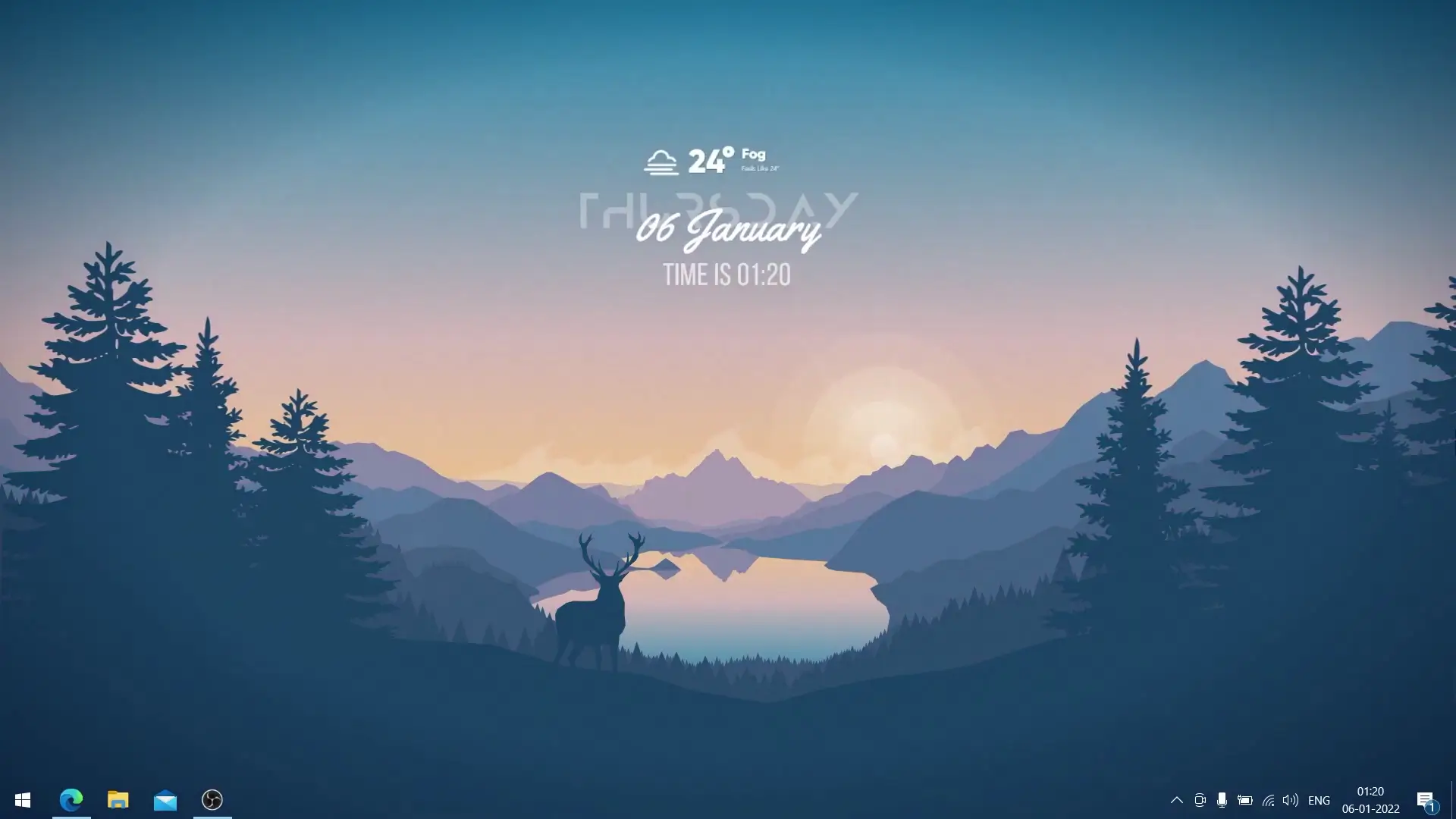
Customizing your desktop is a great way to make your computer feel more personal and visually appealing. Instead of using the default Windows look, many users prefer adding widgets, animated wallpapers, and stylish themes to create a unique setup. In this guide, we will look at a simple desktop customization method that uses Rainmeter and Lively Wallpaper. These tools allow you to transform a plain desktop into something modern and dynamic without putting heavy load on your system.
What This Desktop Setup Includes
This setup focuses on creating a clean and attractive desktop layout. It combines animated wallpapers with useful desktop widgets so your screen looks better while still remaining functional.
The theme shown in this setup is designed to be lightweight, meaning it does not consume too much RAM or CPU. This is important because many visual themes can slow down computers if they are poorly optimized. With the tools used in this setup, you can enjoy smooth performance even on mid-range PCs.
The desktop style in this guide is part of the “How to Make Desktop Look Awesome” series, and this version introduces another theme variation that focuses on simplicity and minimal design.
Tools Required for This Setup
To recreate this desktop layout, you only need two main applications. Both are widely used by people who enjoy desktop customization.
✅ DOWNLOAD ✅
1. Rainmeter
Rainmeter is one of the most popular desktop customization tools for Windows. It allows you to add small widgets called skins on your desktop. These skins can display useful information such as:
- System performance (CPU, RAM usage)
- Time and date
- Music player controls
- Weather information
- Custom shortcuts
The biggest advantage of Rainmeter is flexibility. Thousands of skins and themes are available online, and users can easily arrange them to build a personalized desktop layout.
2. Lively Wallpaper
Lively Wallpaper is a free application that allows you to use animated wallpapers on your desktop. Instead of a static background image, your desktop can display motion wallpapers, videos, or interactive visuals.
Despite offering animated backgrounds, Lively Wallpaper is designed to manage system resources efficiently. When you open applications or games, it automatically reduces resource usage to maintain smooth performance.
How to Set Up the Theme
Setting up this desktop theme is simple and does not require advanced technical knowledge. Just follow these general steps.
Step 1: Download the Required Files
First, download the Rainmeter installer and the theme ZIP file provided with the setup. Save the ZIP file on your computer.
Step 2: Install Rainmeter
Run the Rainmeter installer and follow the on-screen instructions. Once installed, Rainmeter will start automatically and allow you to load desktop skins.
Step 3: Install Lively Wallpaper
Next, install Lively Wallpaper. After installation, you can add animated wallpapers by importing video or wallpaper files into the application.
Step 4: Extract the Theme Files
Locate the ZIP file you downloaded and extract it to your PC. Inside the folder you will find the Rainmeter skins and other resources needed for the desktop layout.
Step 5: Apply the Skins
Load the Rainmeter skins included in the theme. Arrange them on your desktop as shown in the tutorial to recreate the complete setup.
Why This Desktop Setup Works Well
One of the best things about this desktop configuration is that it balances visual appeal with performance. Some heavily customized desktops can slow down computers, but this setup keeps things lightweight and efficient.
Another advantage is flexibility. You can rearrange the widgets, change the wallpaper, or add additional skins depending on your preferences. This means you are not limited to a single design and can keep modifying the layout whenever you want.
Final Thoughts
Desktop customization is a fun way to refresh the look of your computer without changing hardware or installing complicated software. With tools like Rainmeter and Lively Wallpaper, you can build creative desktop setups that are both attractive and practical.
If you enjoy experimenting with desktop themes, this setup from the “Make Your Desktop Look Awesome” series is a great option to try. The installation process is simple, the theme is lightweight, and the final result gives your Windows desktop a modern and stylish appearance.