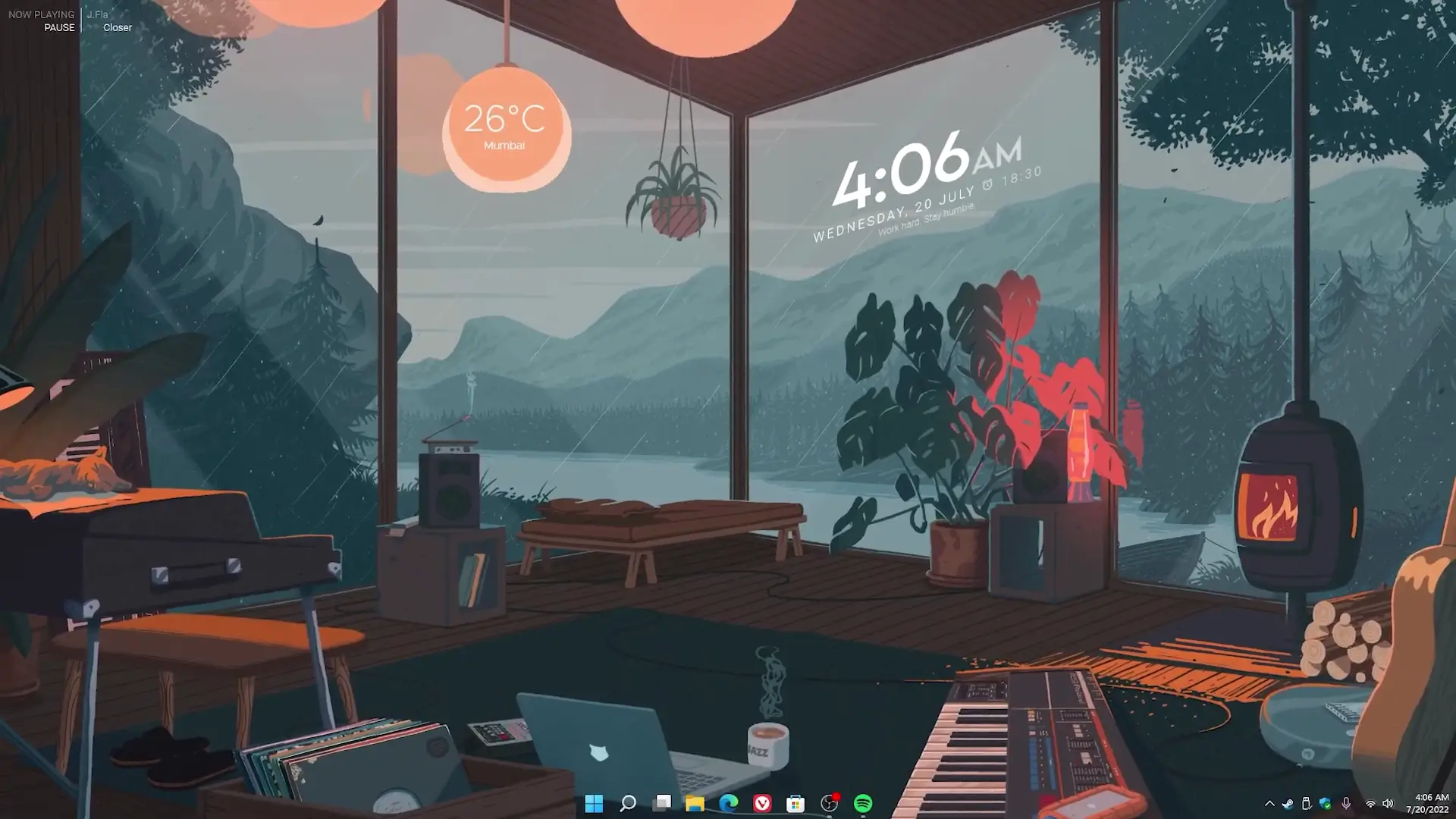
Customizing your desktop is one of the easiest ways to make your computer feel more personal and visually appealing. Many people enjoy creating a clean and modern desktop layout that shows useful information like time, weather, and system details. A popular way to achieve this is by using tools like Rainmeter widgets and live wallpapers. In this guide, you will learn how to recreate a stylish desktop setup similar to the one shown in the tutorial video.
Why Desktop Customization Is Popular
Default desktop layouts are usually simple and functional, but they often look plain. Desktop customization allows users to change the appearance of their screen and add useful widgets that display information in real time.
With the right setup, your desktop can show things like:
- Weather updates
- System performance (CPU, RAM usage)
- Clock and date
- Music player controls
- Shortcuts to frequently used apps
These elements not only make your desktop look better but also improve productivity by keeping important information visible.
Issue with the Old Weather Widget
In the previous tutorial, many users successfully created the same desktop layout. However, over time some people started facing problems with the weather widget. The reason behind this issue was the expiration of the API key used by the widget.
An API key is required for the widget to fetch real-time weather information from a weather service. When that key expires, the widget stops displaying weather data. Because of this, users who followed the earlier tutorial noticed that the weather section was no longer working.
Another reason for updating the tutorial is that the widget used earlier has become outdated. New widgets are now available that offer better compatibility and smoother performance.
What’s New in This Setup
This updated tutorial introduces a refreshed desktop setup while keeping the same attractive live wallpaper used before. The main difference is the use of a new and improved widget that works properly with current weather APIs.
The new setup offers several advantages:
- Updated widget compatible with modern APIs
- Improved visual design
- Better stability and performance
- Easier customization options
With these improvements, users can recreate the same stylish desktop without worrying about the weather widget failing again.
Files Required for the Setup
To create this desktop layout, you will need a few basic files and tools. These are provided in the download section mentioned in the tutorial.
Required items include:
- Theme Setup Folder
- Rainmeter Software
✅ Download All Files ✅
Rainmeter is the main tool used to run desktop widgets. It allows you to install skins that display useful information directly on your desktop. Once Rainmeter is installed, you can load the skins from the theme folder to start building the layout.
How to Install the Desktop Setup
Setting up this desktop design is straightforward. Even if you have never customized your desktop before, you can follow the steps easily.
First, download the setup files and install Rainmeter on your computer. After that, import the skins included in the theme folder. The tutorial video shows the exact order in which everything should be installed and configured.
Follow the steps carefully and apply each customization one by one. This will help you recreate the same desktop appearance shown in the video.
Once the setup is complete, your desktop will feature a modern layout with widgets, a clean interface, and a visually appealing background.
Final Thoughts
Desktop customization is a fun way to improve both the appearance and usability of your computer. With Rainmeter and the updated widgets shown in this tutorial, you can easily create a professional-looking desktop environment.
By following the video guide and installing the provided files step by step, you will be able to achieve the same stylish setup on your own computer. This updated version solves the weather widget issue from the earlier tutorial while introducing a better and more reliable design.