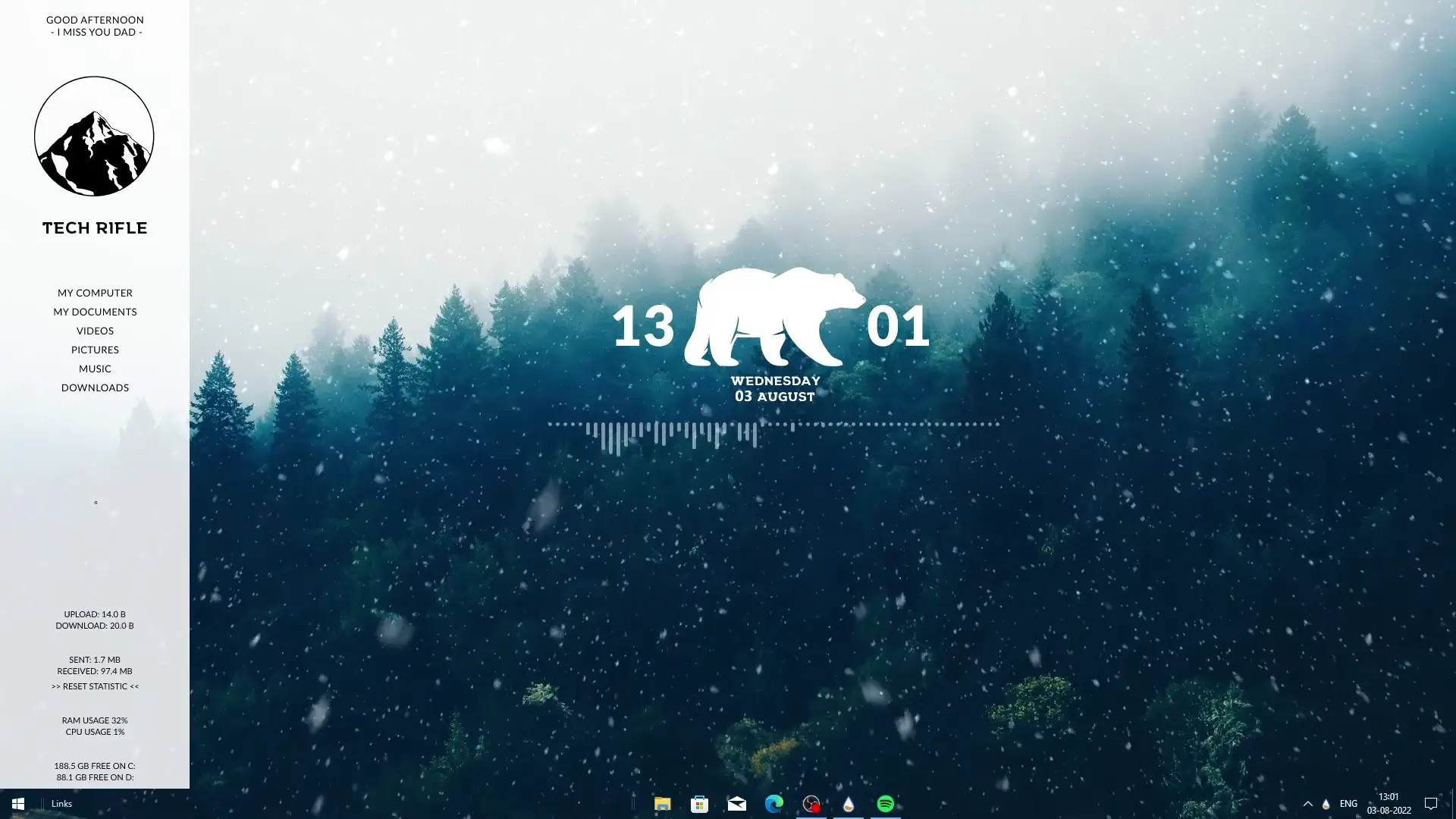
Most desktop customization tutorials take a long time. Many videos go on for 8–10 minutes and involve several steps that can feel confusing for beginners. But what if you could make your desktop look clean and stylish in just a few minutes?
In this quick guide, we will walk through a simple setup that can completely change how your desktop looks. With only a few tools and widgets, you can turn a plain Windows desktop into something modern and minimal.
This tutorial also gives special credit to ApexXx-SenSei, who created the Rainmeter widget used in this setup.
Why Customize Your Desktop?
A default desktop works fine, but customizing it can make your computer feel more personal and organized. Many people like to redesign their desktop for a few reasons:
- It looks visually pleasing
- Important information like time and system stats becomes easier to see
- Your workspace feels more comfortable to use
- It gives your PC a clean and modern style
Even small changes such as a new wallpaper or widget layout can make a big difference.
Tools Required for This Setup
To recreate the desktop style shown in the tutorial, you only need two main applications and a widget pack.
1. Lively Wallpaper
Lively Wallpaper allows you to use animated wallpapers on your desktop. Instead of a static background image, you can use moving scenes, videos, or interactive wallpapers.
This makes the desktop feel more alive and dynamic.
2. Rainmeter
Rainmeter is one of the most popular desktop customization tools for Windows. It allows you to add widgets directly on your desktop.
With Rainmeter you can display:
- Clock and date
- Music visualizers
- System information (CPU, RAM, storage)
- Custom shortcuts
- Weather and other useful data
Rainmeter works through small components called skins or widgets.
3. Rainmeter Widget Pack
The tutorial uses a widget created by ApexXx-SenSei. This widget adds a modern clock, system information, and audio visualizer to the desktop, giving it a minimal and stylish look.
✅ DOWNLOAD ✅
Step-by-Step Setup
The setup process is simple and only takes a few minutes.
Step 1: Install Lively Wallpaper
First, download and install Lively Wallpaper. Once installed, open the application and select the wallpaper included in the download pack.
Apply it as your desktop background.
This animated wallpaper creates the foundation for the overall design.
Step 2: Install Rainmeter
Next, download and install Rainmeter. During installation you can use the default settings.
After installing, Rainmeter will run in the background and allow widgets to appear on your desktop.
Step 3: Add the Widget
Now install the Rainmeter widget provided in the download section.
Once loaded, you can place the widget anywhere on your screen. The tutorial positions it in the center so that the clock and visualizer become the main focus of the desktop.
Step 4: Arrange the Desktop Icons
To match the clean layout shown in the tutorial, move your desktop icons to one side of the screen.
Keeping icons organized helps the widgets stand out and gives the desktop a minimal appearance.
What Makes This Setup Look Good?
The design works well because it combines a few simple ideas:
- Minimal widgets instead of many crowded elements
- A calm animated wallpaper that does not distract from the widgets
- Clear clock and date display in the center
- Subtle music visualizer that adds movement
Together these small elements create a desktop that feels modern without being complicated.
Final Thoughts
You don’t need complicated software or hours of setup to improve your desktop. With just Lively Wallpaper, Rainmeter, and a well-designed widget, you can transform your desktop in minutes.
This quick customization gives your PC a fresh look while keeping everything functional and easy to use.
If you enjoy desktop customization, you can also try different Rainmeter skins and wallpapers to create your own unique style.