Smartphone customization is one of the best ways to give your device a fresh and personal look. Many people use the same default layout and wallpaper for months, but with a few simple apps you can completely change how your phone looks. In this guide, you will learn how to quickly customize your Android phone and create a clean and stylish home screen using a few apps from the Google Play Store.
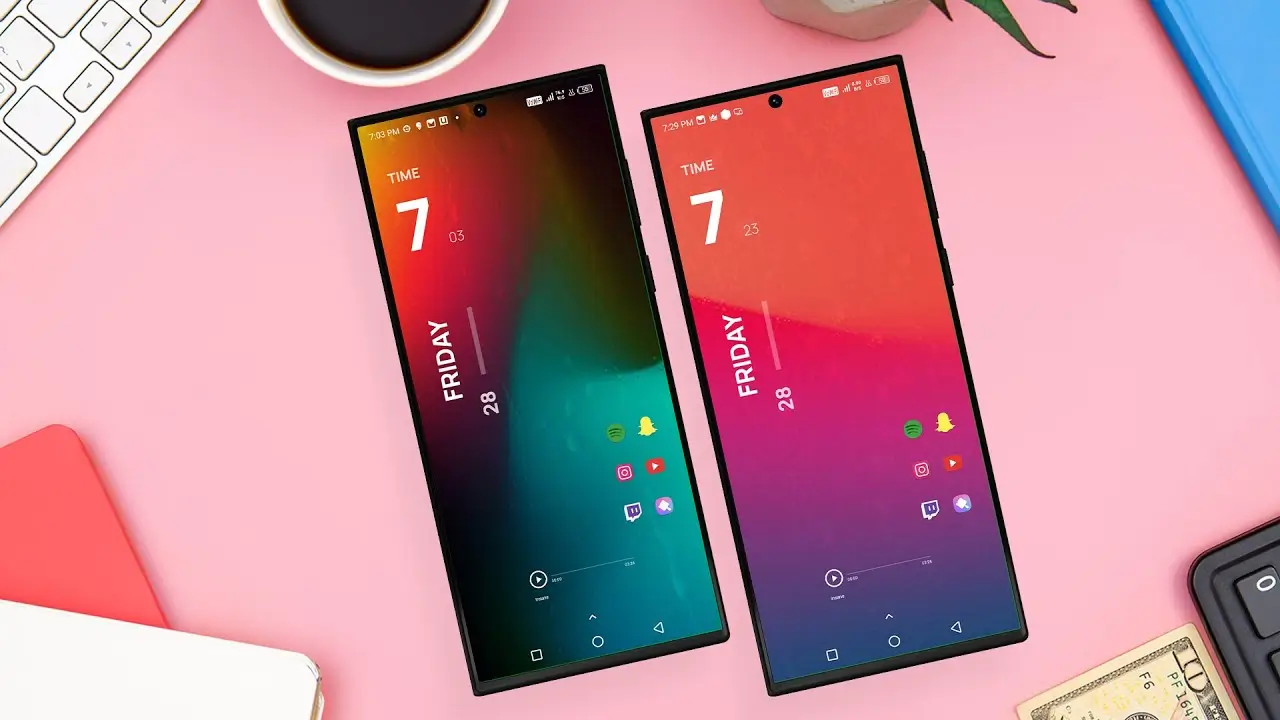
The setup shown in the video uses a modern hologram style wallpaper, a custom widget, and a clean icon layout. The process is simple and does not require any advanced knowledge. Most of the work is done by a launcher and a widget app.
Apps Required for This Setup
Before starting the customization, you need to install a few apps from the Google Play Store. These apps help change the launcher layout, widgets, icons, and wallpaper.
Here are the apps used in the setup:
- Nova Launcher – This replaces the default home screen and allows deeper customization.
- KWGT Kustom Widget Maker – Used to add custom widgets to the home screen.
- Icon Pack – Changes the appearance of your app icons.
- Hologram HD Wallpaper – Provides the main wallpaper used in the setup.
- Rainpaper (Optional) – Adds a live rain effect to wallpapers for a dynamic look.
✅ DOWNLOAD ✅
All of these apps are available on the Play Store and are easy to install.
Step 1: Set Up Nova Launcher
After installing Nova Launcher, set it as your default launcher. This allows it to control your home screen layout.
Once Nova Launcher is active, you can adjust the grid size, icon size, and overall layout. A cleaner grid layout works best for this type of design. Many users prefer a 5×5 or 6×5 grid because it leaves enough space for widgets and icons.
You can also remove labels under icons if you want a cleaner appearance.
Step 2: Apply the Hologram Wallpaper
The wallpaper plays a big role in the final look. In this setup, a hologram style wallpaper is used, which gives the phone a futuristic design.
After downloading the Hologram HD Wallpaper app, choose the wallpaper shown in the tutorial thumbnail and set it as your home screen background.
If you want extra visual effects, you can install Rainpaper. This app adds a realistic rain animation on top of your wallpaper. It is optional, but it can make the setup look more dynamic.
Step 3: Install and Apply the Icon Pack
Icons can make a big difference in how the home screen looks. After installing your icon pack, open Nova Launcher settings and apply the icon pack from the “Look & Feel” section.
Once applied, all your app icons will follow the new design style. This helps keep the home screen consistent with the wallpaper and widget style.
Step 4: Add the KWGT Widget
Widgets are the key element of this setup. The tutorial provides a Theme Settings file that contains the widget layout.
After installing KWGT Kustom Widget Maker, follow these steps:
- Long press on the home screen
- Tap Widgets
- Select KWGT Widget
- Place it on your home screen
Now open the widget and load the theme settings file provided in the download section. This will apply the exact widget style shown in the tutorial.
The widget usually contains a clock, date, and sometimes shortcuts for apps.
Final Result
Once all the steps are completed, your Android phone will have a completely new look. The combination of the hologram wallpaper, custom widget, and icon pack creates a modern and stylish home screen.
The best part is that the whole process takes only a few minutes. With the right apps and the provided theme settings file, anyone can create this setup easily.
If you enjoy customizing your smartphone, this is a great setup to try. You can also change the wallpaper or icon pack later to create different styles while keeping the same layout.