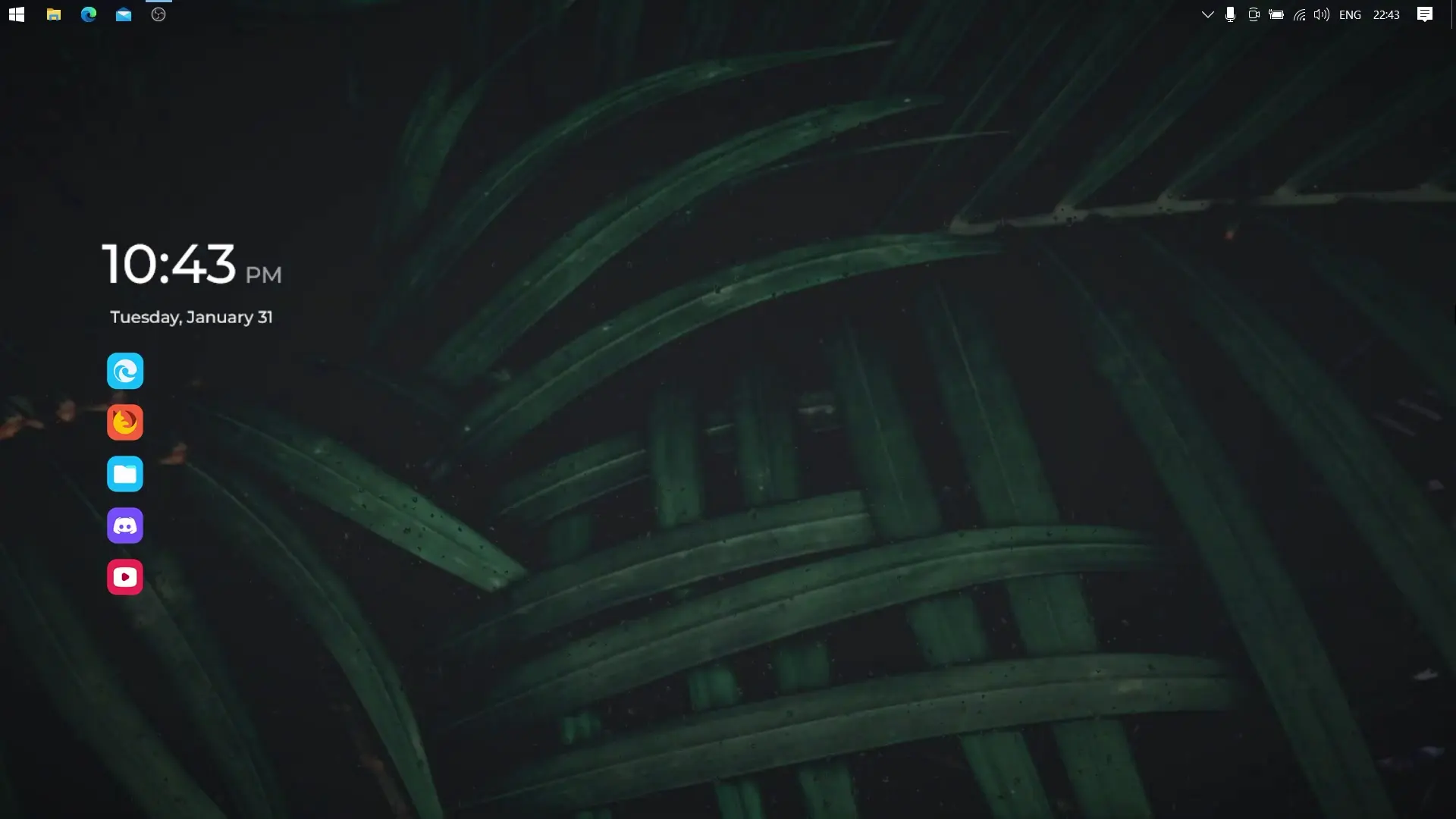
If you like a clean and calm desktop, a minimalist setup can make a big difference. A cluttered desktop full of icons and random files can distract you while working or studying. A simple design with fewer elements helps your screen look neat and easier to use. In this tutorial-style guide, we will look at a minimalist desktop setup that uses a green leaf wallpaper, a simple clock widget, and a dock for quick access to apps. The result is a clean and modern desktop that still stays functional.
Why Choose a Minimalist Desktop Setup
A minimalist desktop focuses on simplicity. Instead of filling the screen with many widgets and icons, it keeps only the important things visible.
Some benefits of a minimalist desktop include:
- Less distraction: A clean screen helps you focus on your work.
- Better productivity: Important apps are easier to access.
- Better aesthetics: A simple layout often looks more modern and organized.
- Reduced visual clutter: Removing unnecessary icons keeps the screen calm.
Many people prefer minimalist desktops because they make the computer feel lighter and easier to use.
Step 1: Use a Clean Green Leaf Wallpaper
The wallpaper is the foundation of this setup. A simple green leaf background works well because it gives a calm and natural feel to the desktop.
Nature-style wallpapers are popular in minimalist setups because they are soft on the eyes and do not create visual noise. The tutorial uses a green leaf wallpaper, which blends well with transparent widgets and docks.
You can find the wallpaper inside the Theme Setup folder included with the tutorial resources.
When choosing wallpapers for a minimalist desktop, it is usually better to select:
- Simple textures
- Nature backgrounds
- Solid or soft color gradients
These types of wallpapers keep the focus on the desktop elements rather than distracting the user.
Step 2: Hide All Desktop Icons
The next step is removing icons from the desktop. A screen filled with shortcuts can quickly break the minimalist look.
To hide desktop icons in Windows:
- Right-click on an empty area of the desktop
- Click View
- Uncheck Show desktop icons
Your desktop will instantly look cleaner. All files are still accessible through File Explorer, so hiding icons does not remove them permanently.
This small change alone can make the desktop look much more organized.
Step 3: Add a Dock for Important Apps
Since desktop icons are hidden, a dock is used for launching apps quickly.
The setup uses Winstep Nexus Dock, which creates a macOS-style dock on the desktop. It allows you to keep your most used apps in one place without cluttering the screen.
After installing Winstep Nexus Dock:
- Import the wsbackup.wbk file from the theme setup folder.
- Apply the included icon pack for a consistent look.
The dock usually sits at the bottom of the screen and contains shortcuts such as:
- Browser
- File explorer
- Media player
- System tools
This keeps everything accessible while still maintaining a minimalist layout.
Step 4: Install Rainmeter for the Clock Widget
Rainmeter is one of the most popular desktop customization tools for Windows. It allows users to add widgets such as clocks, system monitors, and calendars.
In this setup, Rainmeter is used only for a simple clock widget.
Using just one widget helps keep the design minimal. The clock shows the time clearly without taking up too much space.
After installing Rainmeter:
- Extract the theme setup folder.
- Install the Simple Clock skin.
- Position the clock neatly on the desktop.
Keeping widgets limited is important in minimalist setups. Too many widgets can make the desktop look busy again.
Step 5: Add Live Rain Wallpaper
To give the desktop a slightly dynamic look, the tutorial uses Lively Wallpaper.
Lively Wallpaper allows animated backgrounds without heavy system usage. In this setup, the default rain animation is used and combined with the green leaf wallpaper.
This creates a subtle rain effect on the desktop, making the screen feel more alive while still staying calm and minimal.
You can customize the animation settings inside the Lively Wallpaper application to match your preference.
Requirements for This Setup
To recreate this desktop setup, you will need the following tools:
Requirements
THIS WINDOWS CUSTOMIZATION WORKS ON BOTH WINDOWS 10 & WINDOWS 11
Installing these tools and applying the included files will help you recreate the same desktop look shown in the tutorial video.
Final Thoughts
A minimalist desktop setup is a great way to keep your computer clean, organized, and visually appealing. By using a simple green leaf wallpaper, hiding desktop icons, adding a dock for apps, and using a single clock widget, you can create a calm workspace that reduces distractions.
Small customization tools like Rainmeter, Winstep Nexus Dock, and Lively Wallpaper make it easy to design a desktop that fits your style. With just a few adjustments, your Windows desktop can look modern while still staying practical for everyday use.